FreeCAD’s functionality can be significantly extended through Add-ons, which are external tools not included in the base installation. These come in two main flavors: Macros and External Workbenches. Learning to use and even create these tools is a fantastic way to boost your productivity and customize the software to your specific needs, especially for someone offering Mechanical CAD services.
Also Read-:
- How to install FreeCAD Wiki documentation offline
- Visit My FreeCAD Video Tutorial Library
- Essential FreeCAD Tips for Faster Modeling
Here’s a brief overview to get you started.
🧩 What are Add-ons and Macros?
It’s helpful to understand the distinction between the two primary types of add-ons:
| Feature | Macros | External Workbenches |
|---|---|---|
| Description | A sequence of commands (a Python script) used to perform a complex or repetitive drawing operation. Think of it as a “super-shortcut” for tasks. | A collection of tools and graphical interfaces focused on a specific task, like sheet metal design or PCB work. They often contain multiple macros and complex functionality. |
| File Format | Single text file with a .FCMacro extension. |
A folder containing various Python files, resources, and possibly icons. |
| Complexity | Simple to moderately complex. Ideal for automating small, specific tasks. | Highly complex. Can introduce a completely new set of tools and a new workbench dropdown in the interface. |
There is also a third, less common type called a Preference Pack, which allows you to share sets of user preferences.
⚙️ How to Install and Use Them
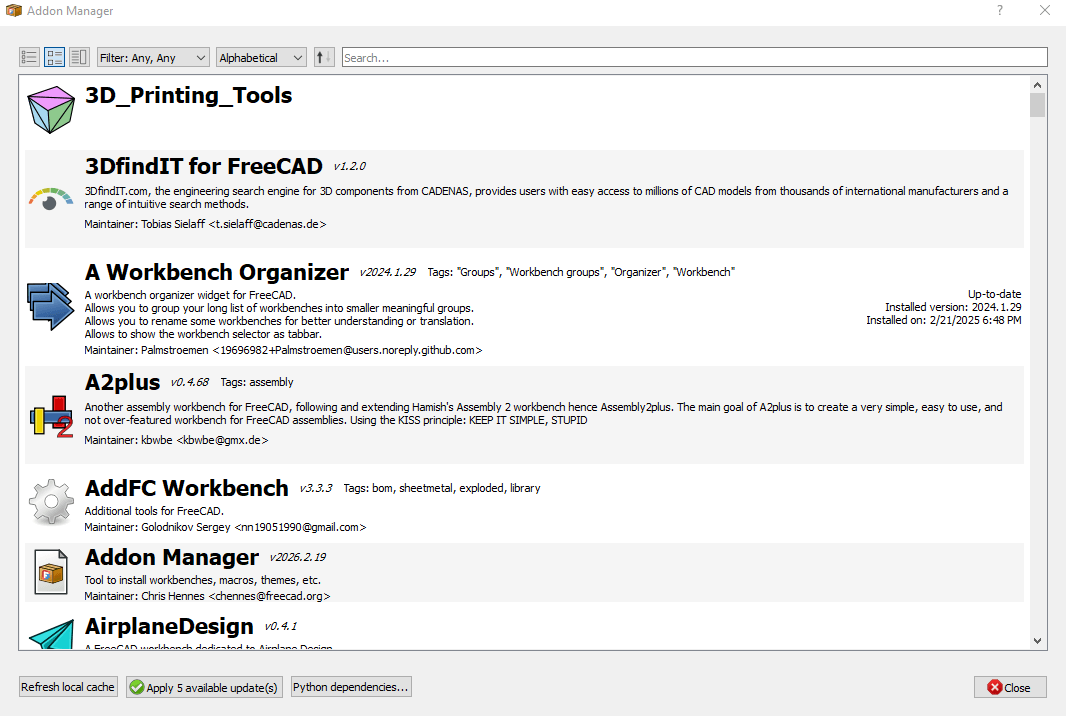
The easiest and recommended way to install both macros and external workbenches is through the built-in Addon Manager.
-
Open FreeCAD and go to the menu: Tools → Addon Manager.
-
The Addon Manager window will open, showing a list of available workbenches and macros. You can browse or search for what you need.
-
Find the add-on you want, select it, and click the Install/Update button. The Addon Manager handles the download and installation automatically.
For macros, there are also manual installation methods, which can be useful if you’re developing your own or testing code. This generally involves:
-
Finding the macro’s code (e.g., on the Macros recipes page).
-
Opening FreeCAD’s Macro → Macros… dialog, clicking Create, giving it a name, and pasting the code into the editor that opens.
Once installed, you can run a macro from the Macro → Macros… menu, and a new workbench can be selected from the workbench dropdown. You can even assign custom keyboard shortcuts or toolbar buttons to your macros via the Tools → Customize menu.
📚 Learning Resources
Here are the best places to deepen your knowledge of FreeCAD add-ons and macros.
| Resource Type | Examples | Description & Notes |
|---|---|---|
| Official Documentation | Macros, How to install macros, External workbenches, Addon Manager | The FreeCAD wiki is your primary resource. It contains detailed explanations, lists of available add-ons, and the “Macros recipes” page with user-contributed scripts. |
| Community & Repositories | FreeCAD Forum (Python Scripting and Macros subforum), FreeCAD-macros GitHub repository | The forum is the best place to ask questions, get feedback on your own macros, and find announcements for new tools. The GitHub repo is the official, peer-reviewed collection of macros. |
| Video Courses | “Master Productivity Tools in FreeCAD” on Udemy | While not official, structured video courses can be very helpful for visual learners. This one covers macros and workbenches for FreeCAD 1.0, assuming you have basic experience. |
| Scripting Fundamentals | Introduction to Python, Python scripting tutorial, FreeCAD Scripting Basics | To write or customize macros, you’ll need some understanding of Python. These official wiki pages are the perfect starting point. |
For a mechanical designer like yourself, some of the most valuable add-ons might be the Fasteners Workbench for adding standard nuts and bolts and the Parts Library for accessing a huge repository of ready-made components. Mastering these, and even learning to create simple macros to automate repetitive tasks in your workflow, could be a significant time-saver.
- FreeCAD Macro Repository: https://wiki.freecad.org/Macros_recipes
- A collection of useful macros to automate tasks in FreeCAD.
- FreeCAD Add-ons Manager:
- Access built-in add-ons directly from FreeCAD:
- Go to Tools > Add-on Manager.
- Browse and install additional workbenches, macros, and extensions.
- Access built-in add-ons directly from FreeCAD:
- GitHub FreeCAD Macros: https://github.com/FreeCAD/FreeCAD-macros
- A repository of macros for FreeCAD.
“Thank you for reading! If you found this article insightful and valuable, consider sharing it with your friends and followers on social media. Your share can help others discover this content too. Let’s spread knowledge together. Your support is greatly appreciated!”