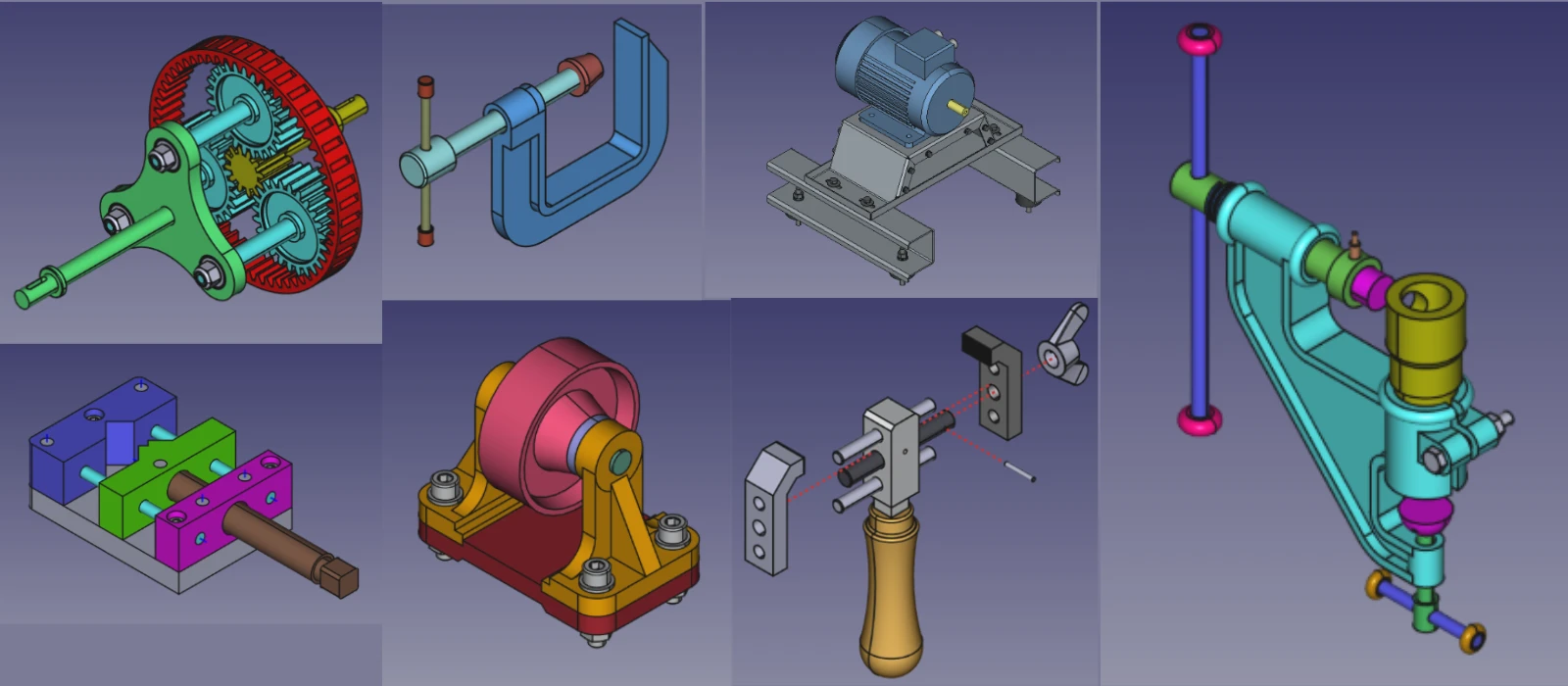
Hello friends welcome to FreeCAD Part Modeling tutorial. In this tutorial we will model Apple Logo in FreeCAD with the help of Part Design Workbench. If you want to learn FreeCAD from scratch you can buy my Complete FreeCAD 1.0 Course : From Zero to Expert! on Udemy.
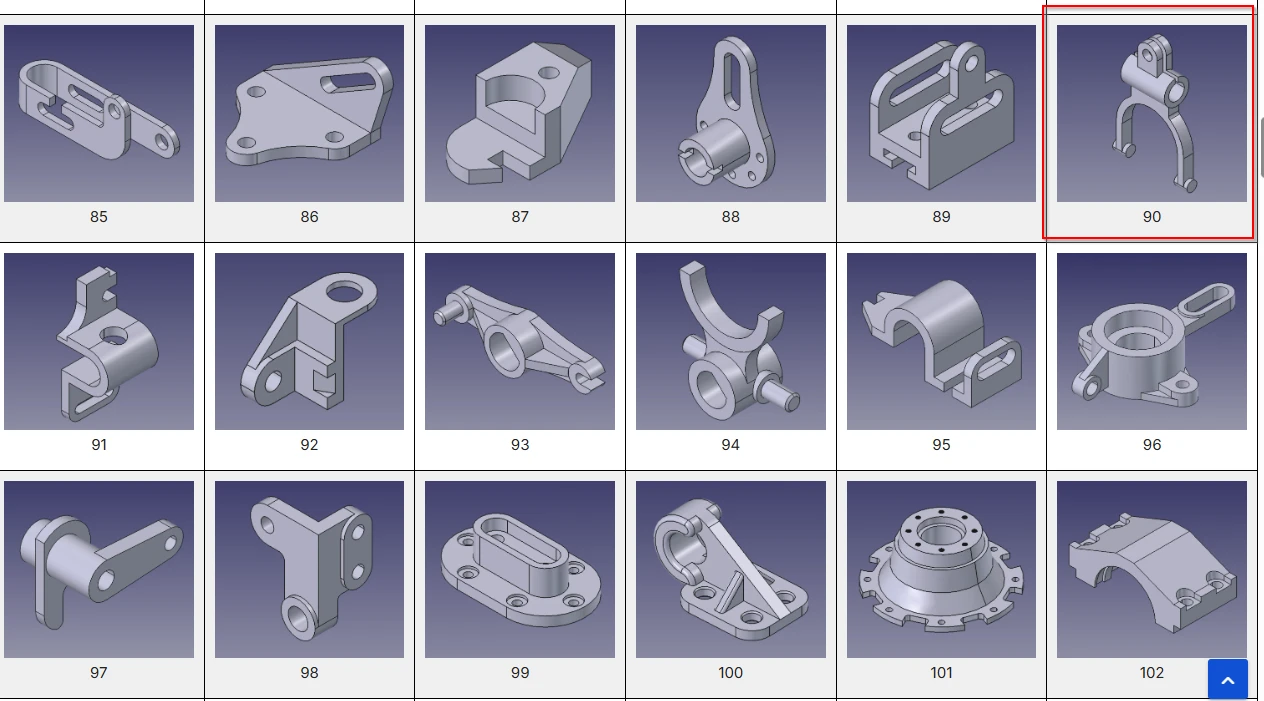
You can download this tutorial FreeCAD model with my FreeCAD 3D Model Library with Serial No.90 As shown in below image. once you click on image you will directed to Google drive folder where you will get FreeCAD model and it’s 2D Drawing. If you like my work please support me on ko-fi.com even if it’s just enough to Buy me a Coffee every little helps and this will be repaid in full through my sharing of knowledge.
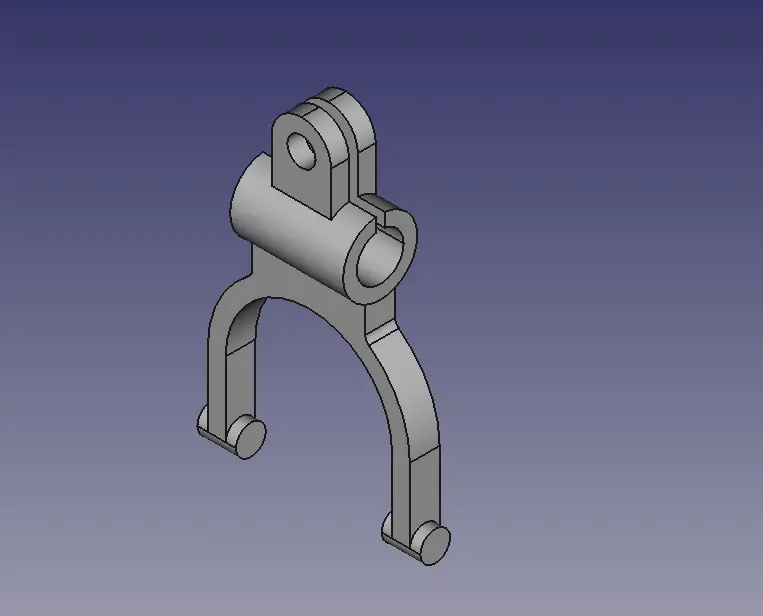
Step by Step Guide to Convert below drawing into 3D Model -:
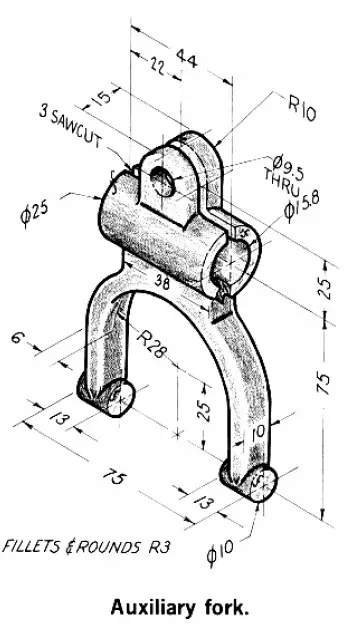
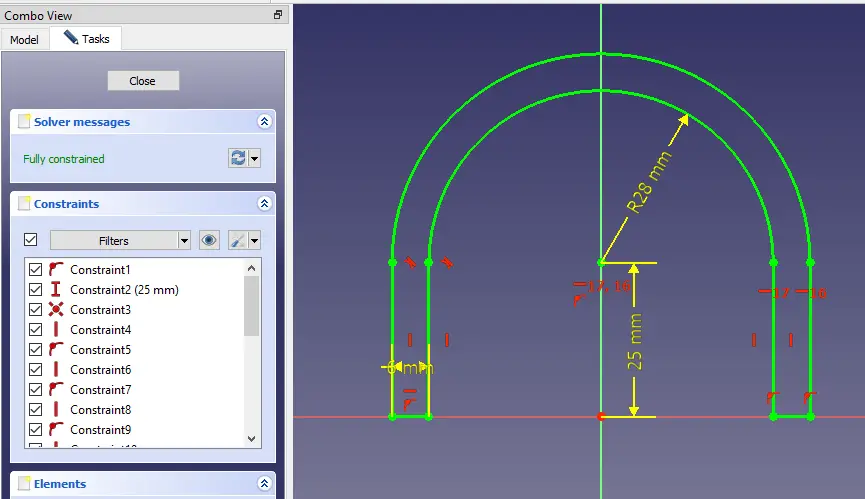
Select the Front plane and create the below sketch.
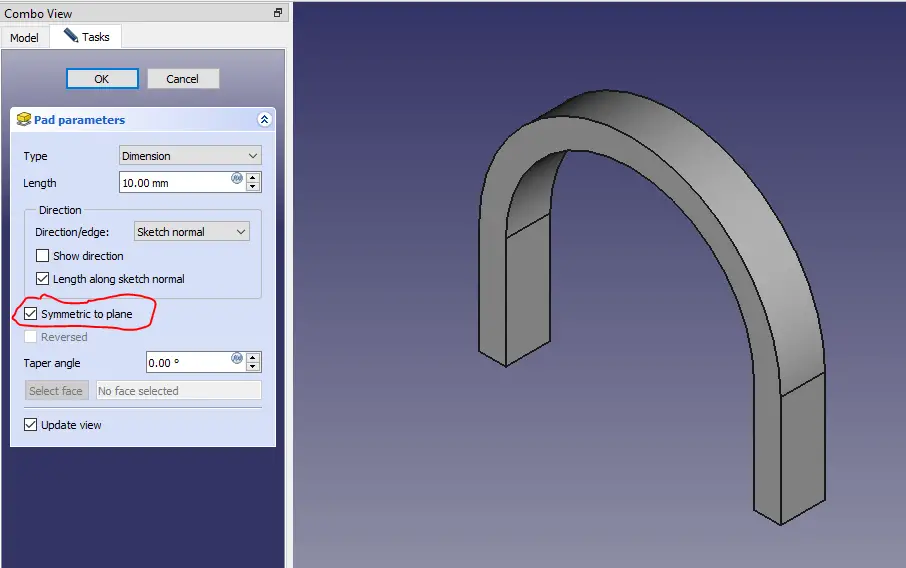
Now extrude the profile as shown in below image.
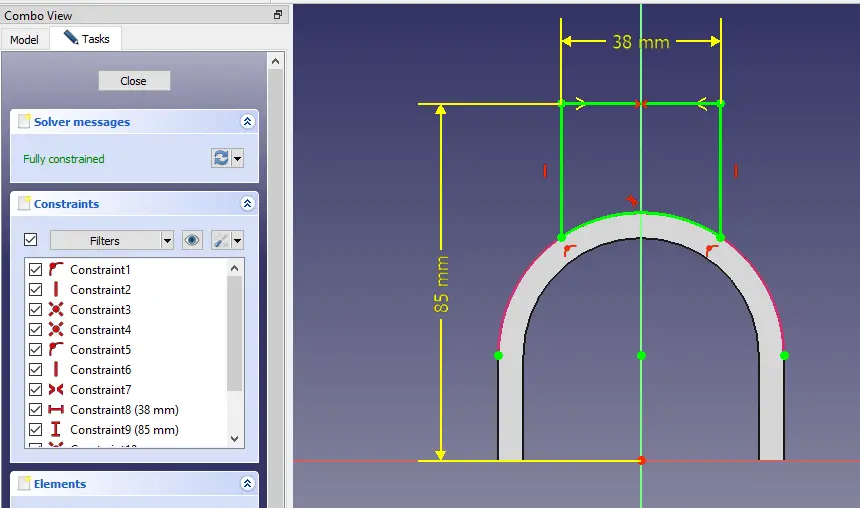
Now select the face and create the below sketch.
Now extrude the profile and set end condition up to face.
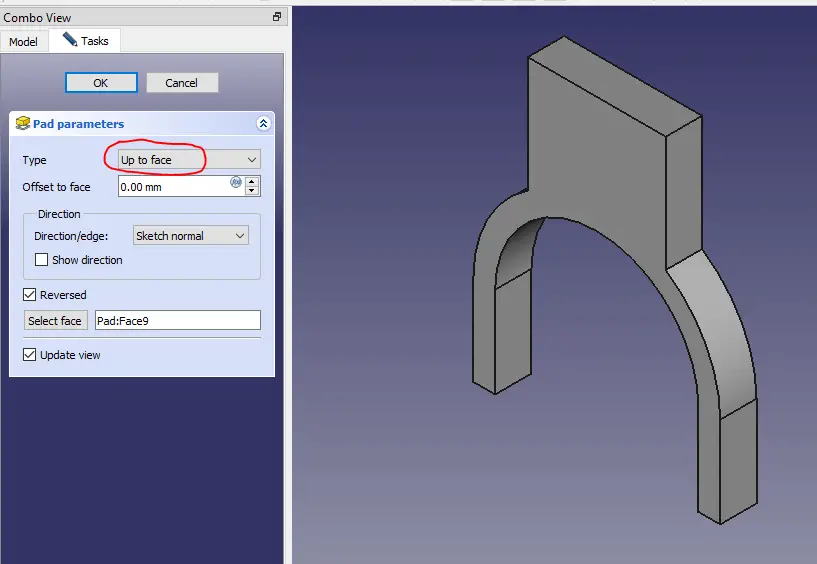
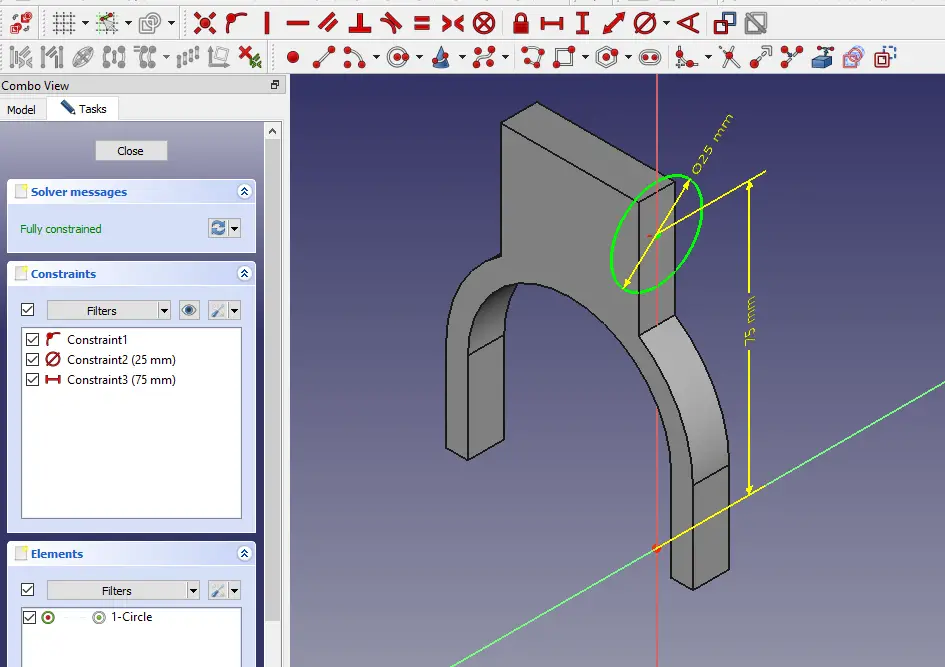
Now select the face and create the below sketch.
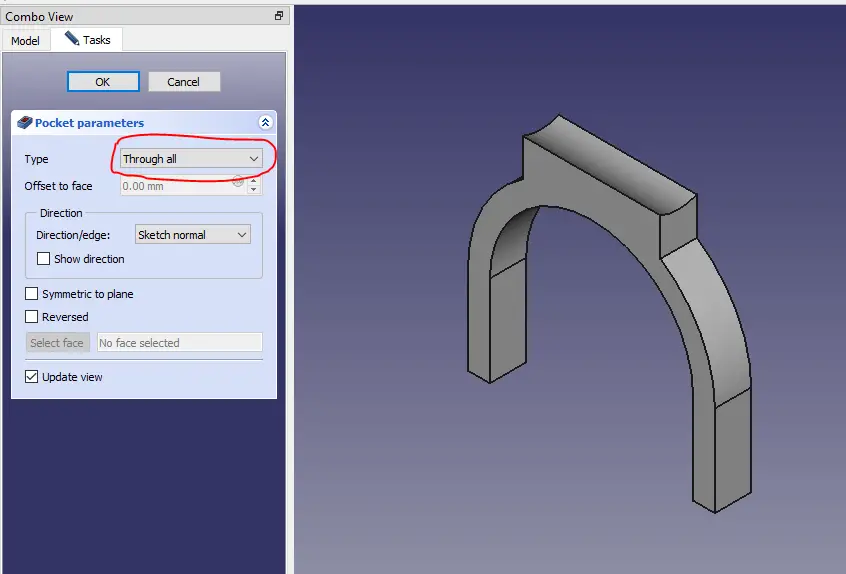
Now remove the material as shown in below image.
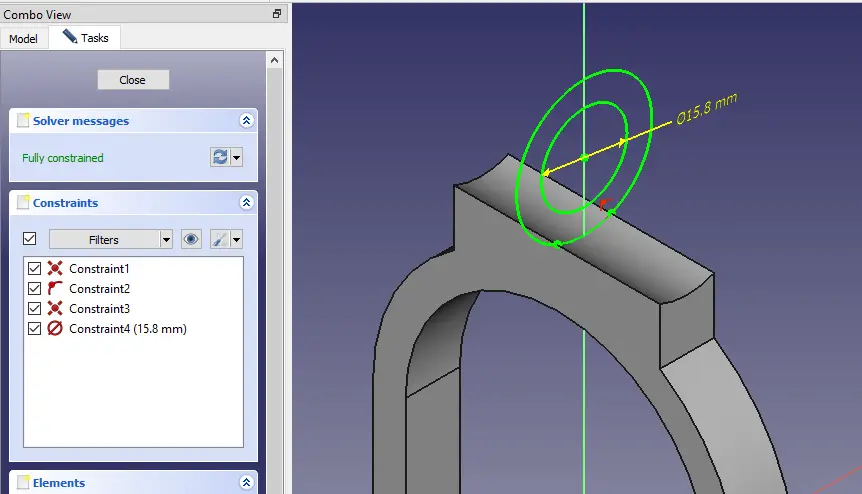
Now select the mid plane and create the below sketch.
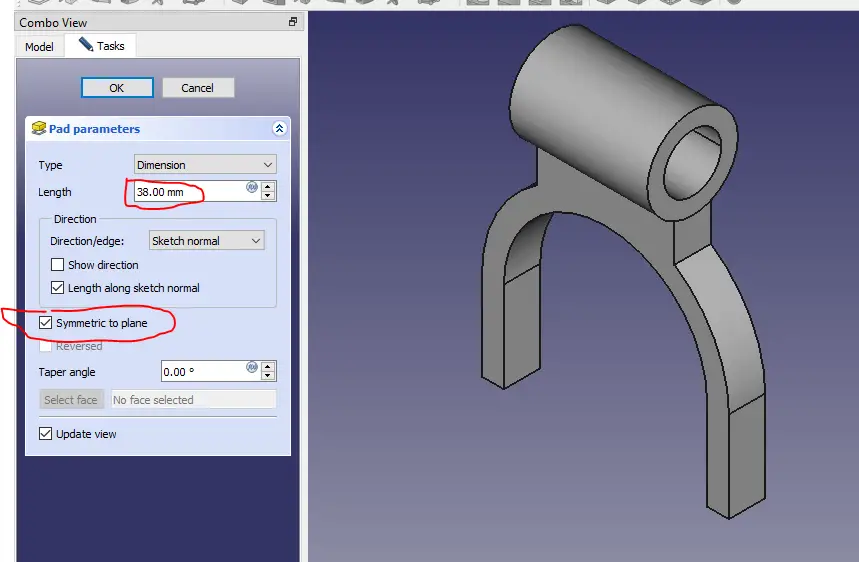
Now extrude the above profile to distance of 38mm and keep it symmetric to plane as shown in below image.
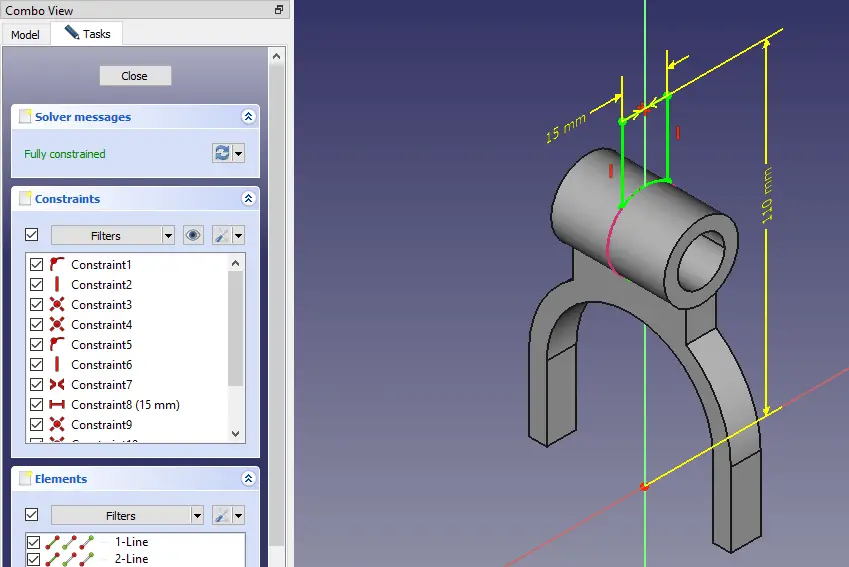
Now select the mid plane and create below sketch.
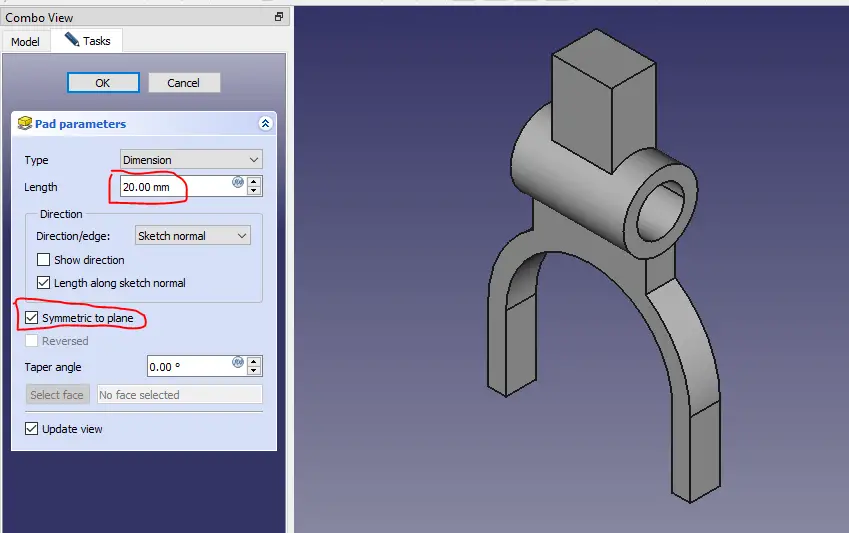
Now extrude the above sketch to distance of 20mm as shown in below image.
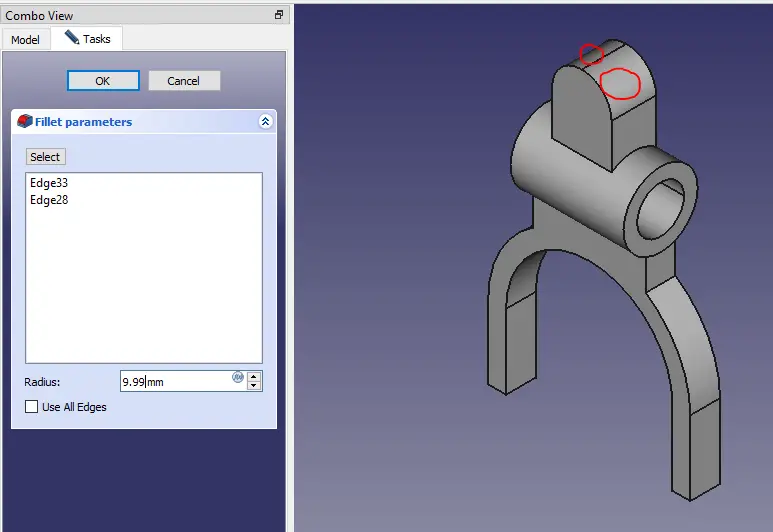
Now select the edge and give the fillet as shown in below image.
Now select inner and outer face and create a datum plane as shown in below image.
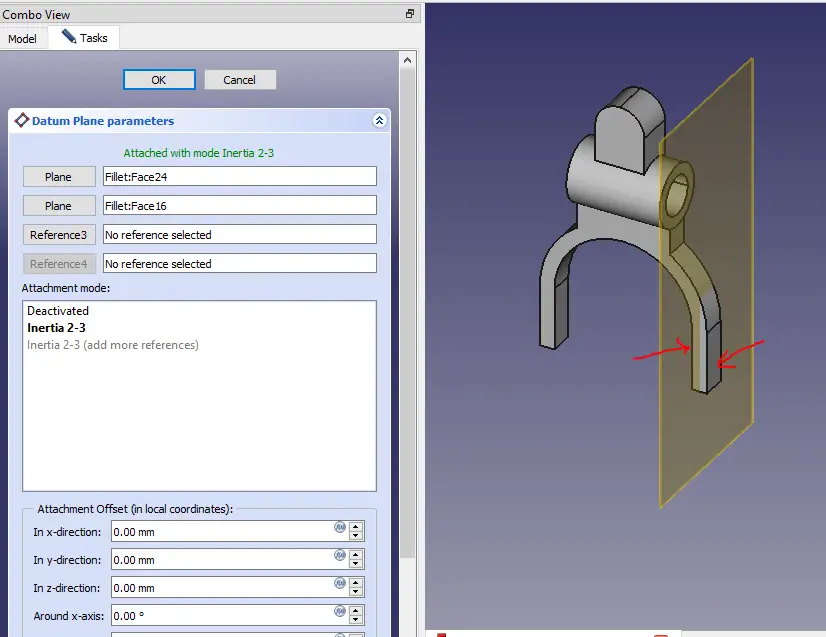
Now create the circle on datum plane as shown in below image.
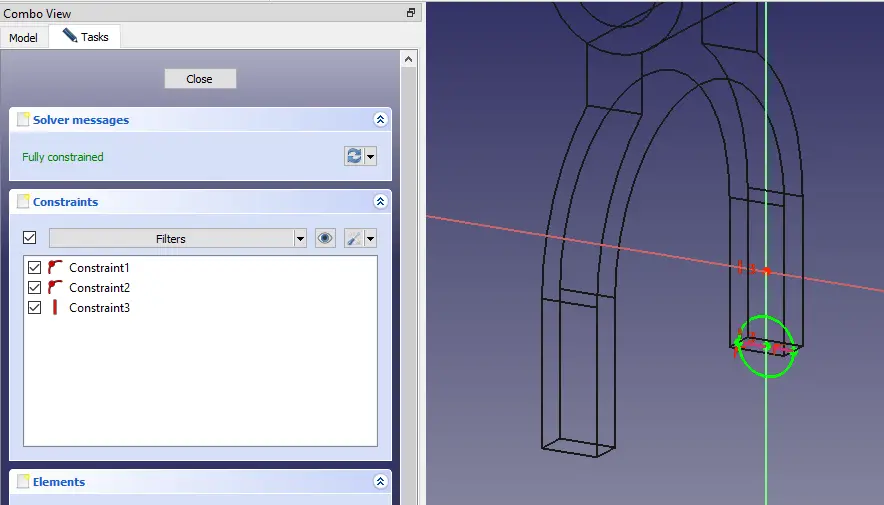
Now extrude the sketch to 13mm and keep it symmetric to plane as shown in below image.
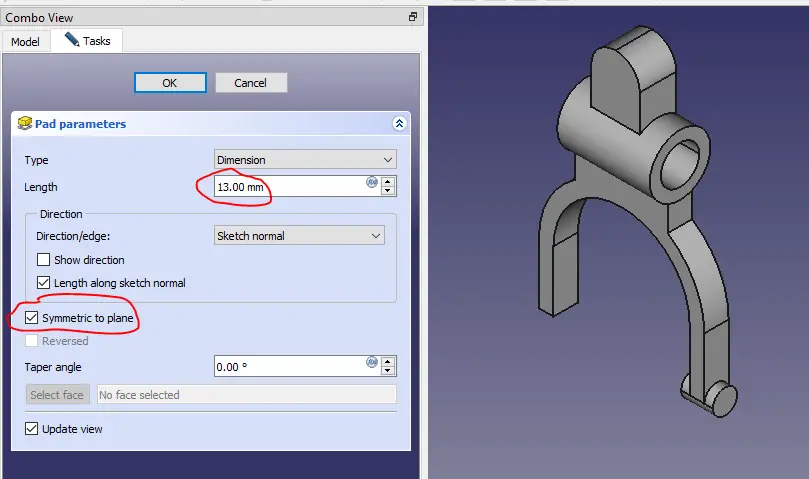
Now mirror the above feature with respect to YZ plane as shown in below image.
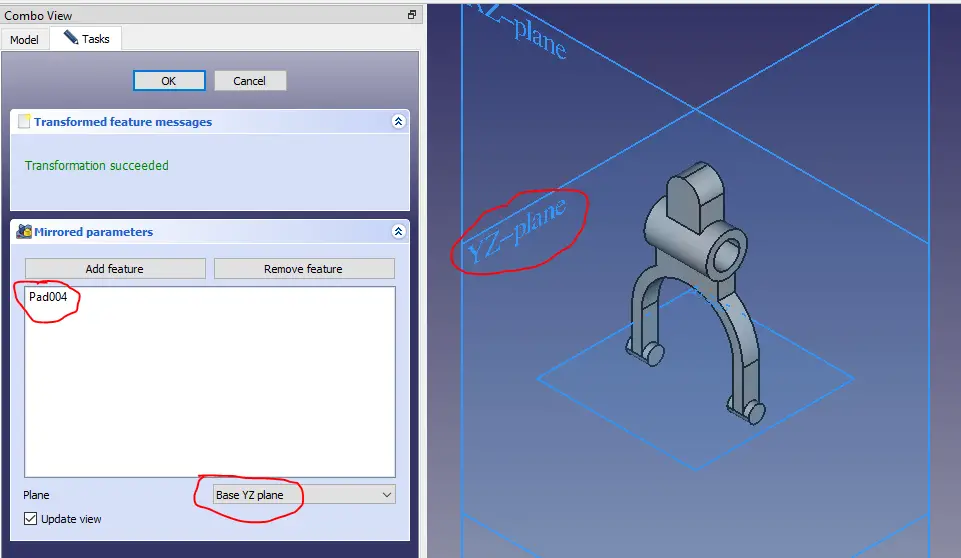
Now project the outer edge and create circle of 9.5mm diameter as shown in below image.
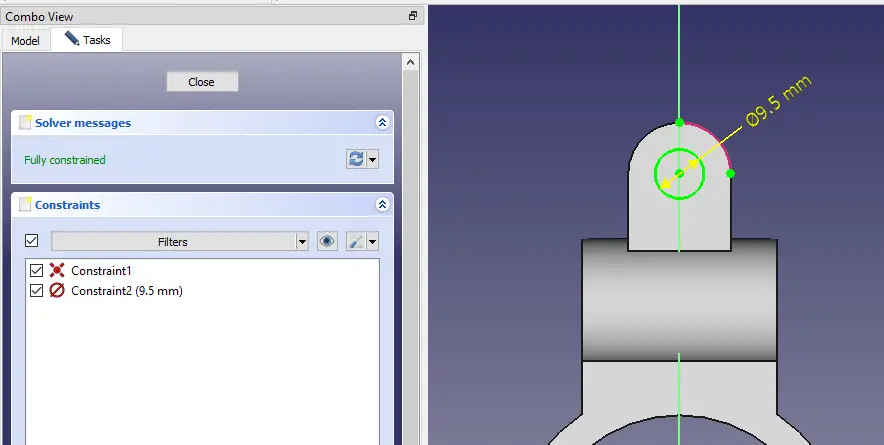
Now create the hole as shown in below image.
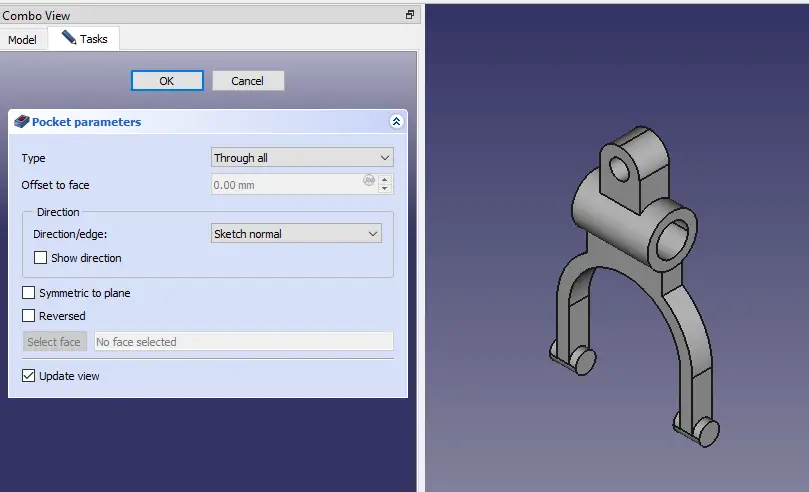
Now select the face and create the below sketch.
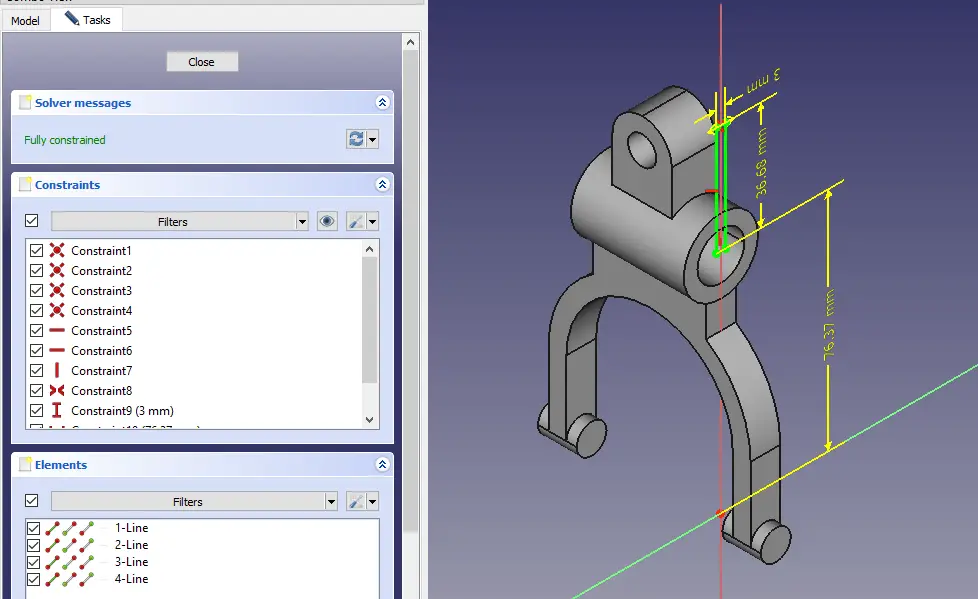
Create the cut as shown in below image.
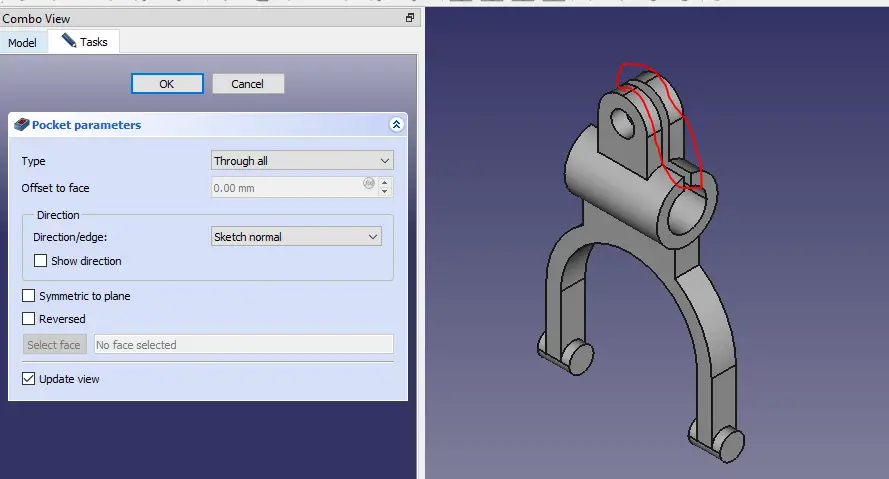
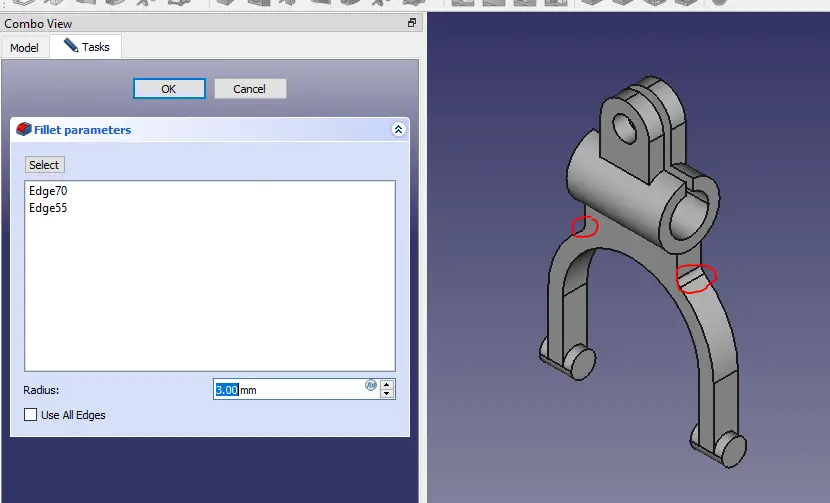
Now create the fillet of 3mm at highlighted location as shown in below image.
“Thank you for reading! If you found this article insightful and valuable, consider sharing it with your friends and followers on social media. Your share can help others discover this content too. Let’s spread knowledge together. Your support is greatly appreciated!”
 My FreeCAD Projects,Model & Drawing now on Gumroad