
Hello friends welcome to FreeCAD Part Modeling tutorial. In this tutorial we will Model Shift Fork in FreeCAD with the help of Part Design Workbench. If you want to learn FreeCAD from scratch you can buy my Complete FreeCAD 1.0 Course : From Zero to Expert! on Udemy.
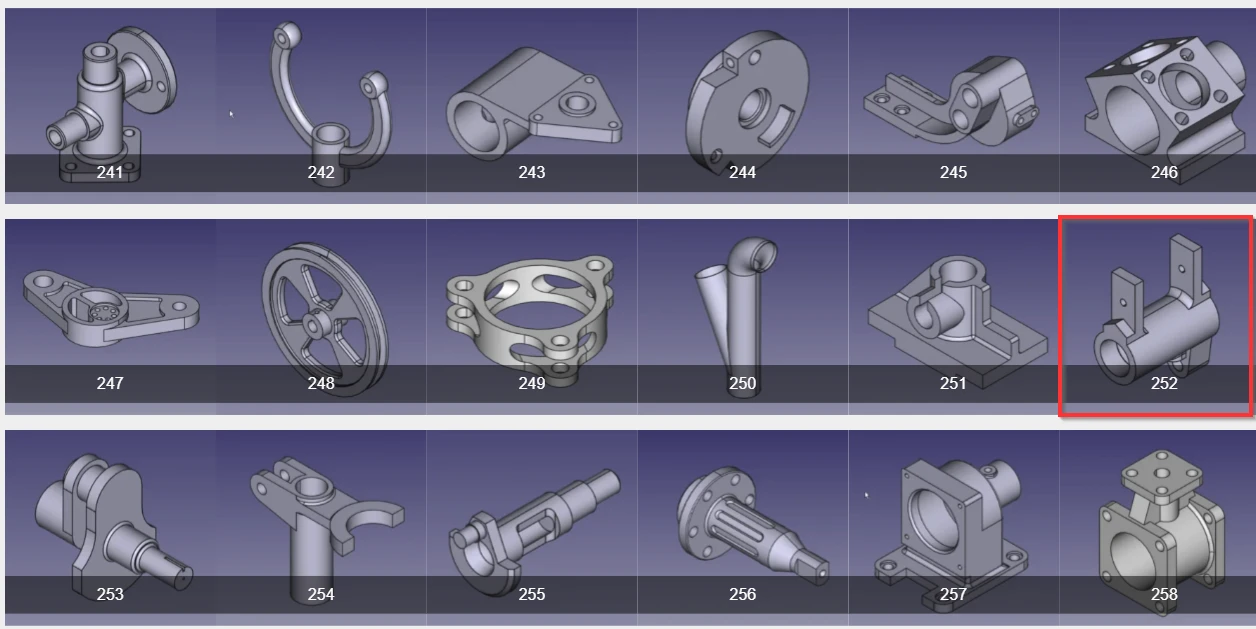
You can download this tutorial FreeCAD model with my FreeCAD 3D Model Library with Serial No.252 As shown in below image. once you click on image you will directed to Google drive folder where you will get FreeCAD model and it’s 2D Drawing. If you like my work please support me on ko-fi.com even if it’s just enough to Buy me a Coffee every little helps and this will be repaid in full through my sharing of knowledge.
Step by Step Guide to Model Shift Fork in FreeCAD-:
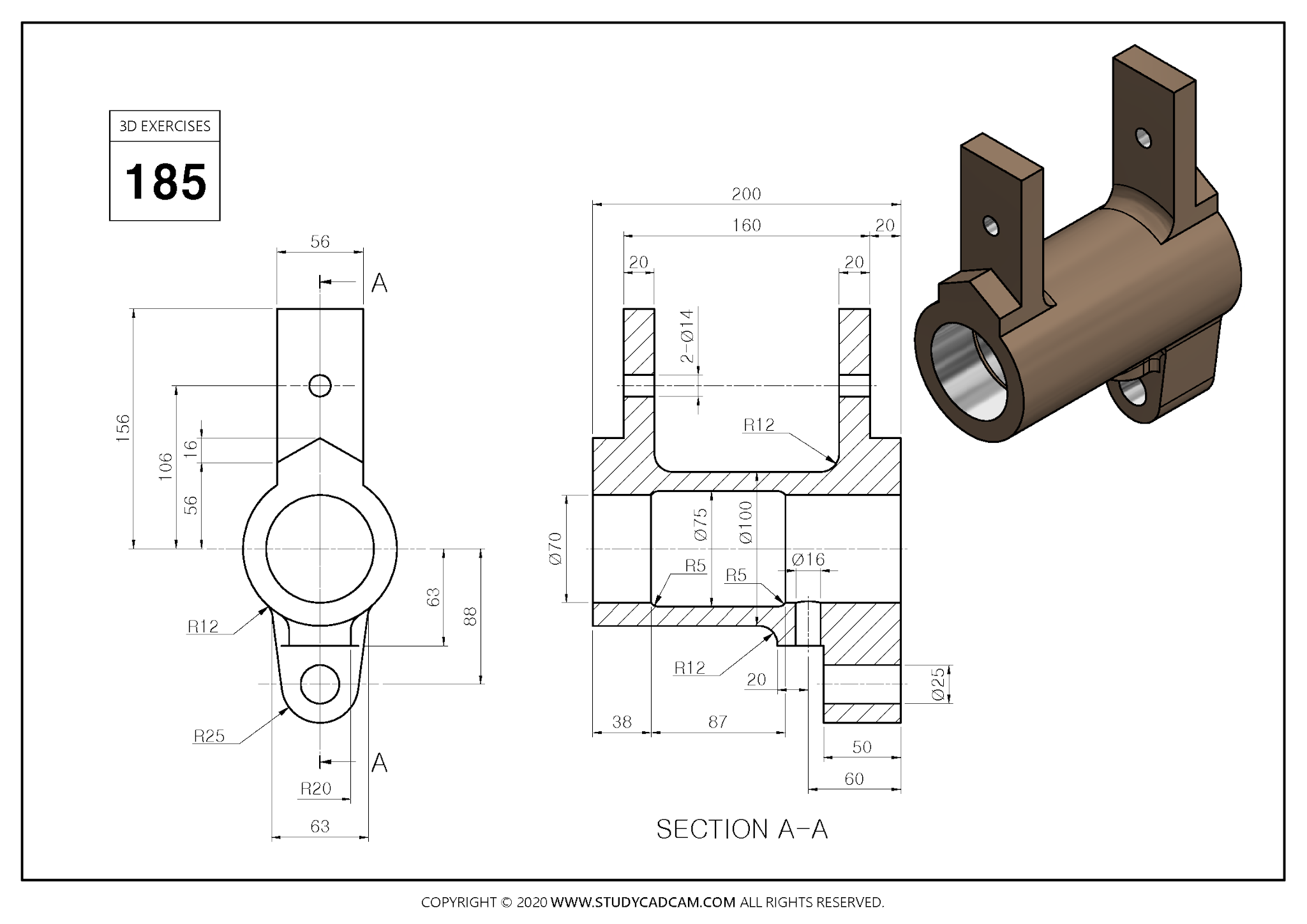
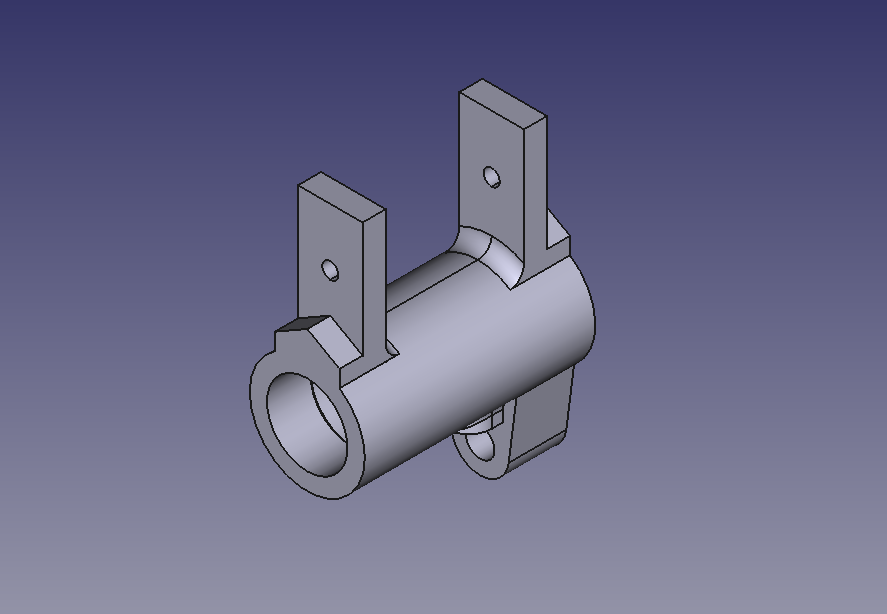 Select the right plane and create below sketch.
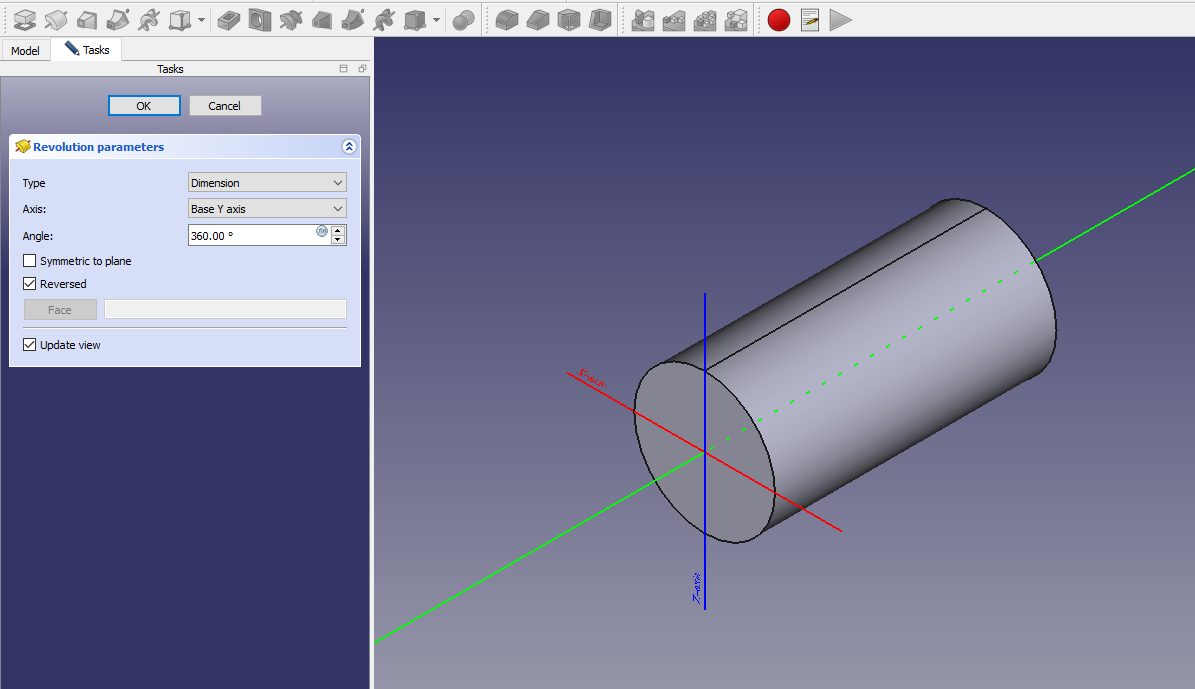
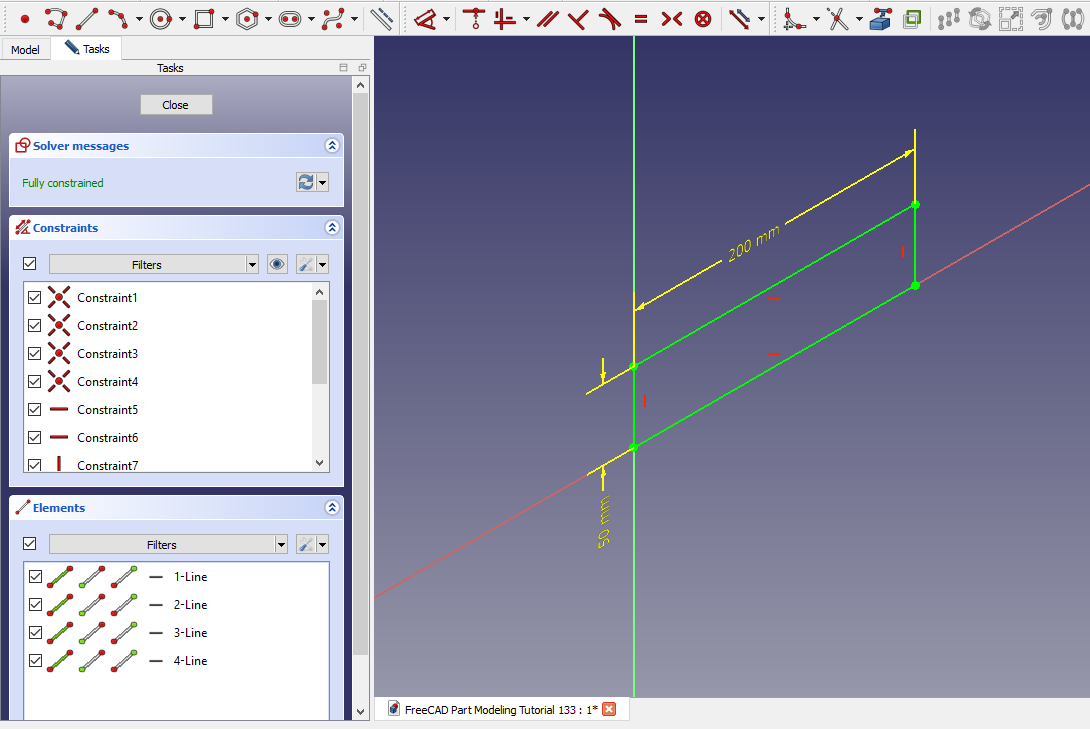 Now create the revolve along Y axis as shown in below image.
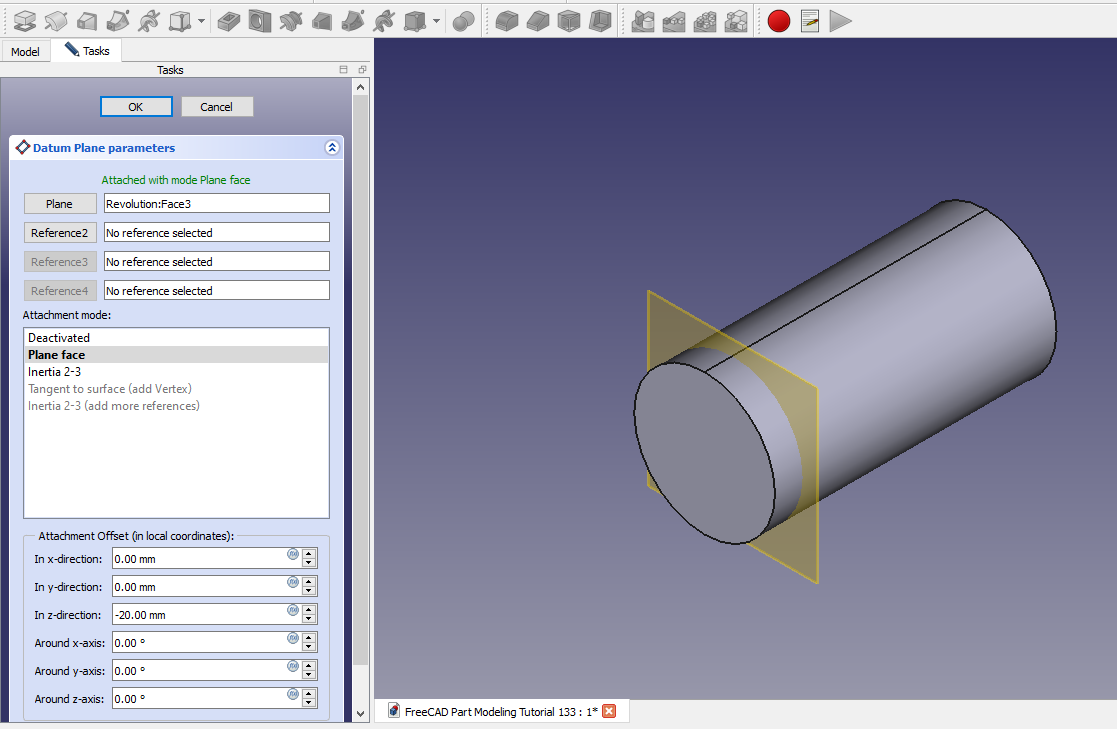
 Now create the datum plane at distance of 20mm as shown in below image.
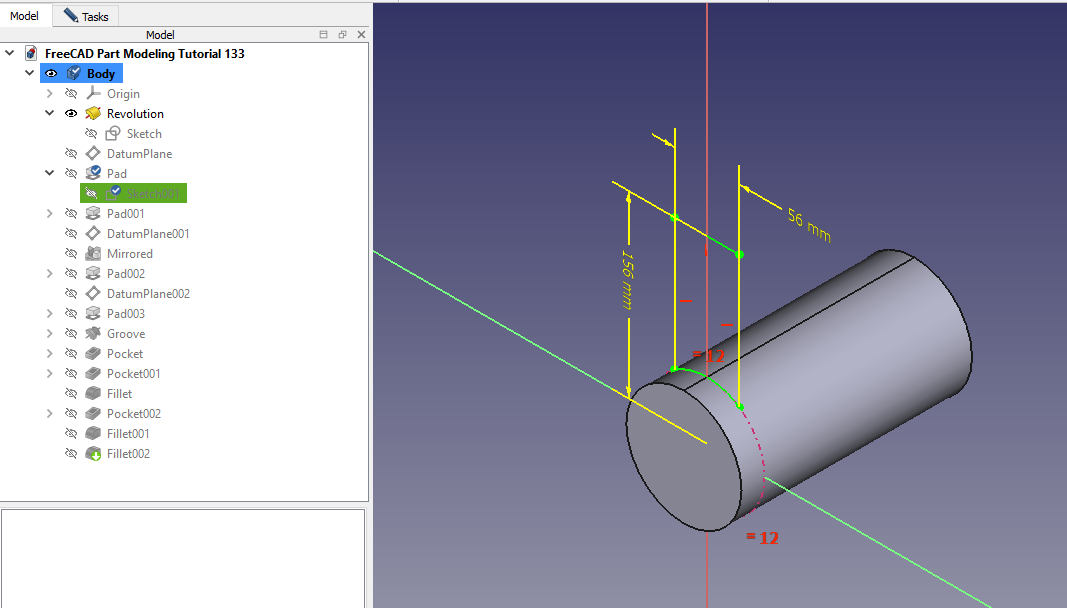
 Now on datum plane create below sketch.
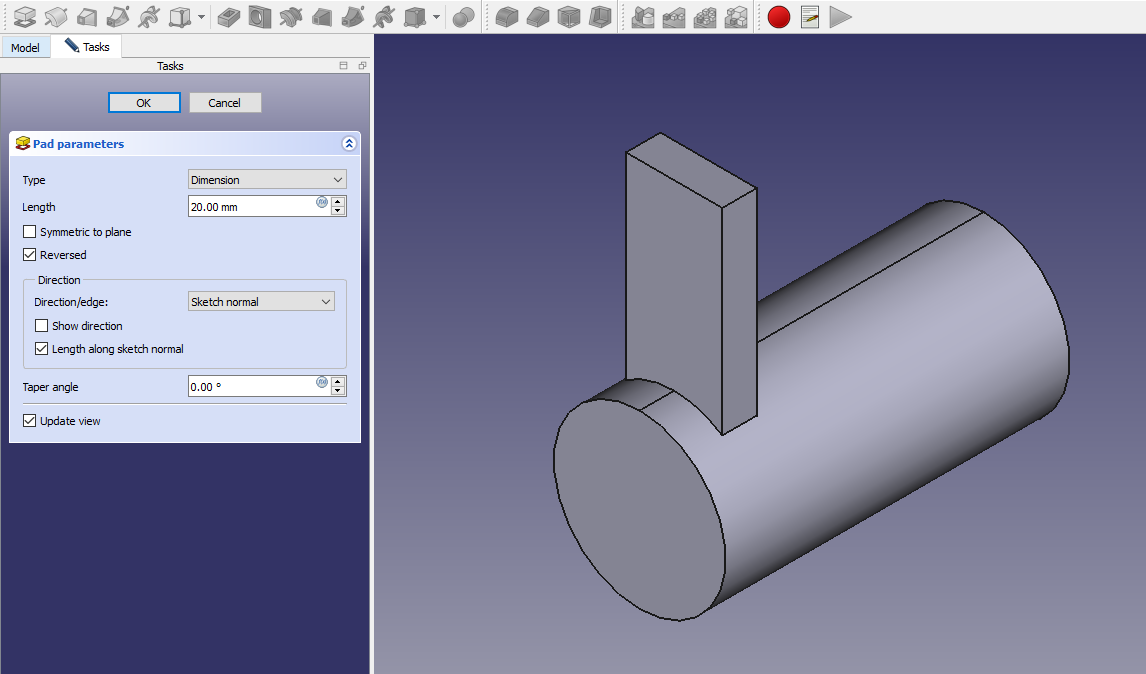
 Now create the pad of 20mm as shown in below image.
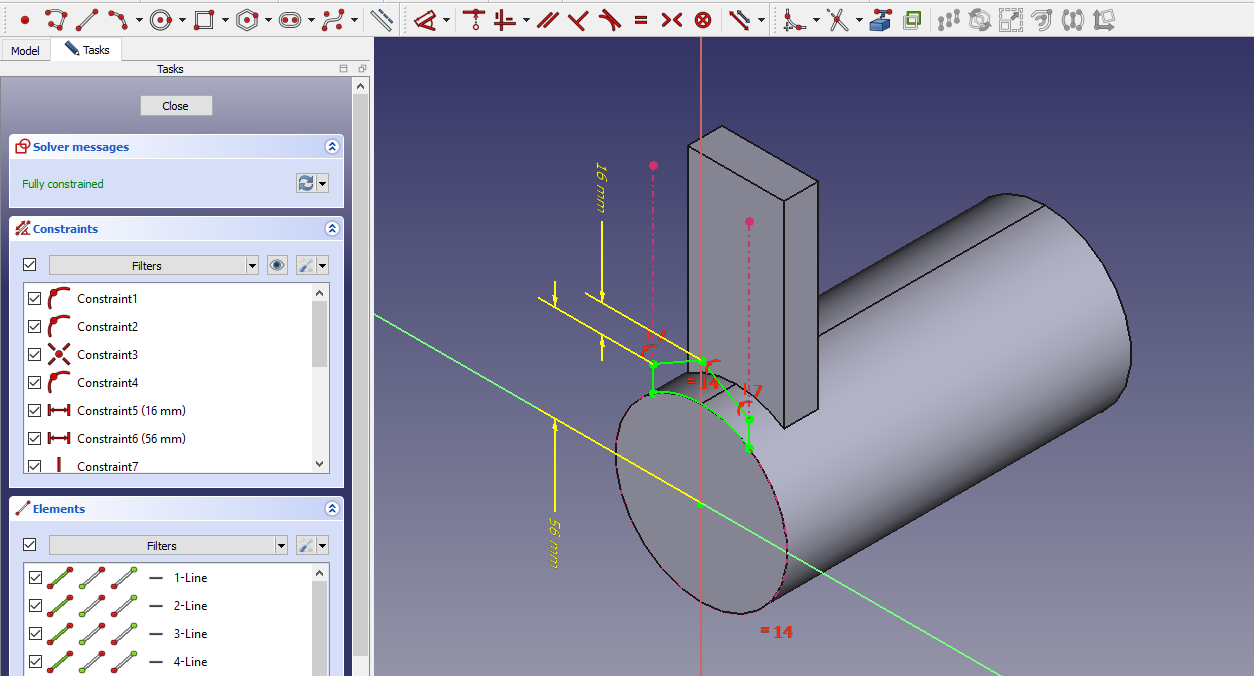
 Now select the front face and create the below sketch.
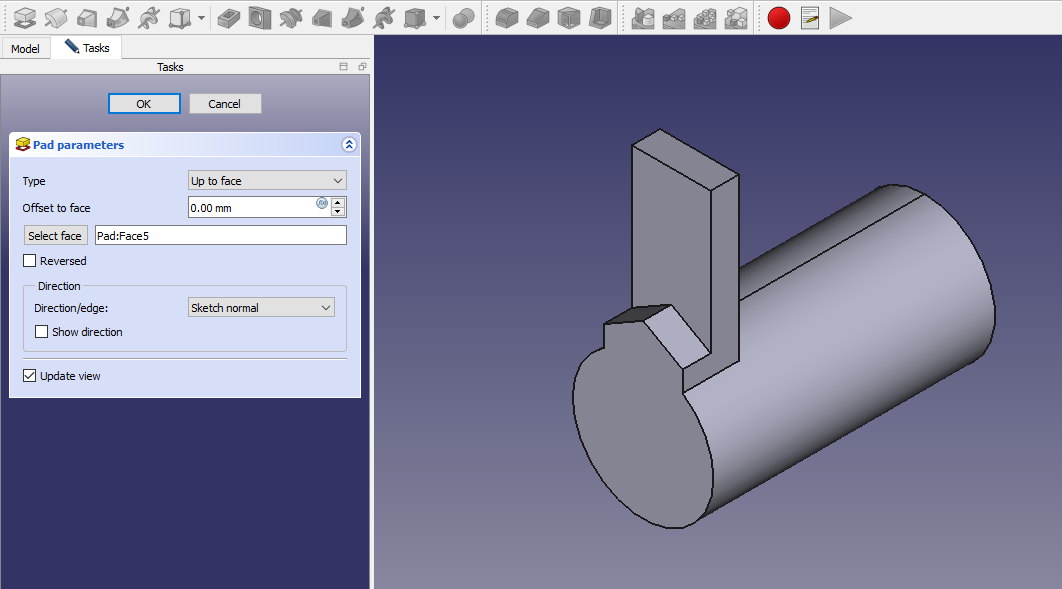
 Create the pad ass shown in below image.
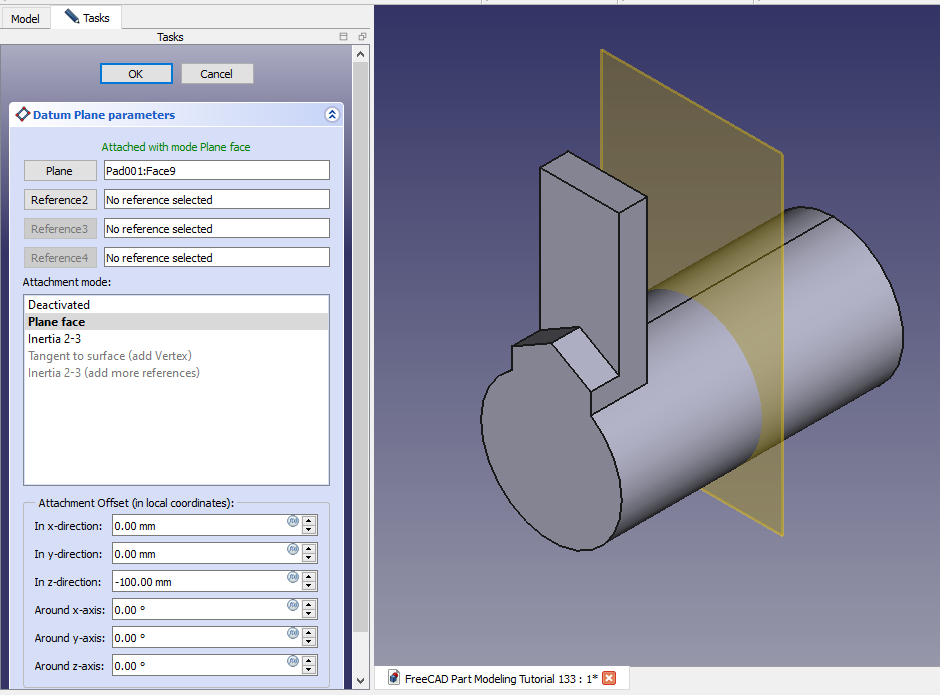
 Now create the mid plane for mirror as shown in below image.
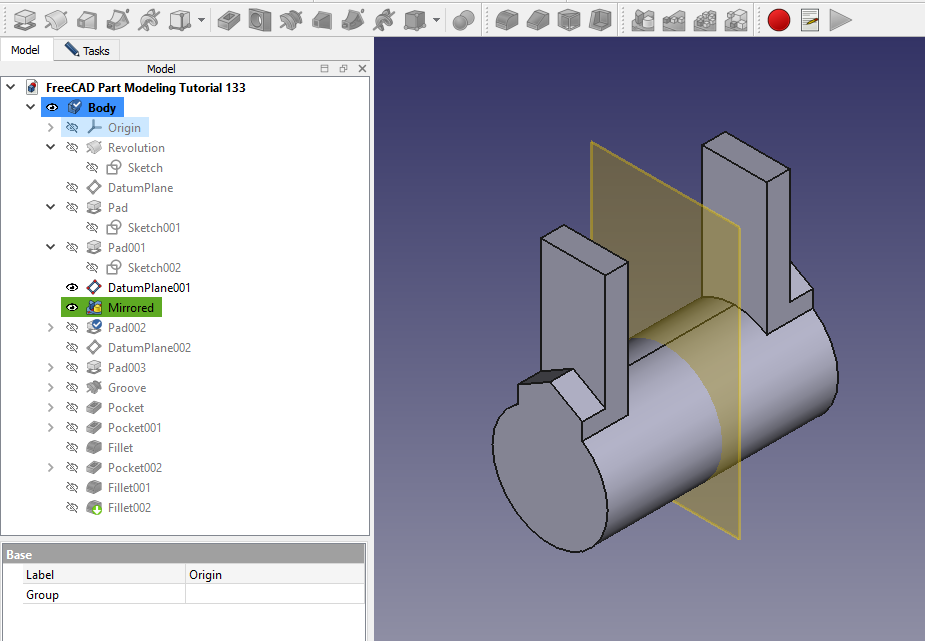
 Mirror the feature as shown in below image.
 Now create the below sketch on back face.
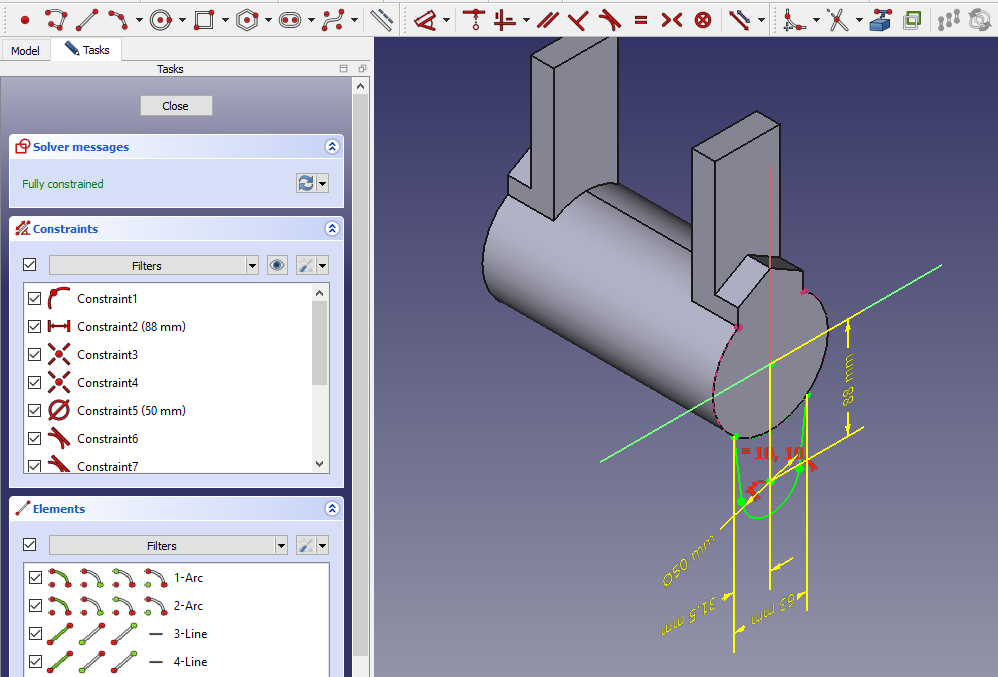 Now create pad of 50mm as shown in below image.
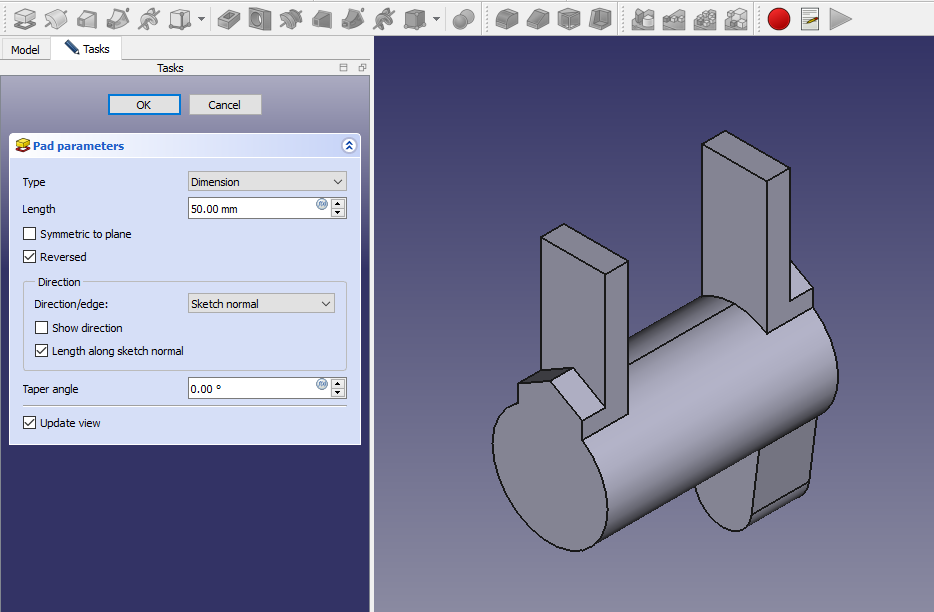 Now create the datum plane as shown in below image.
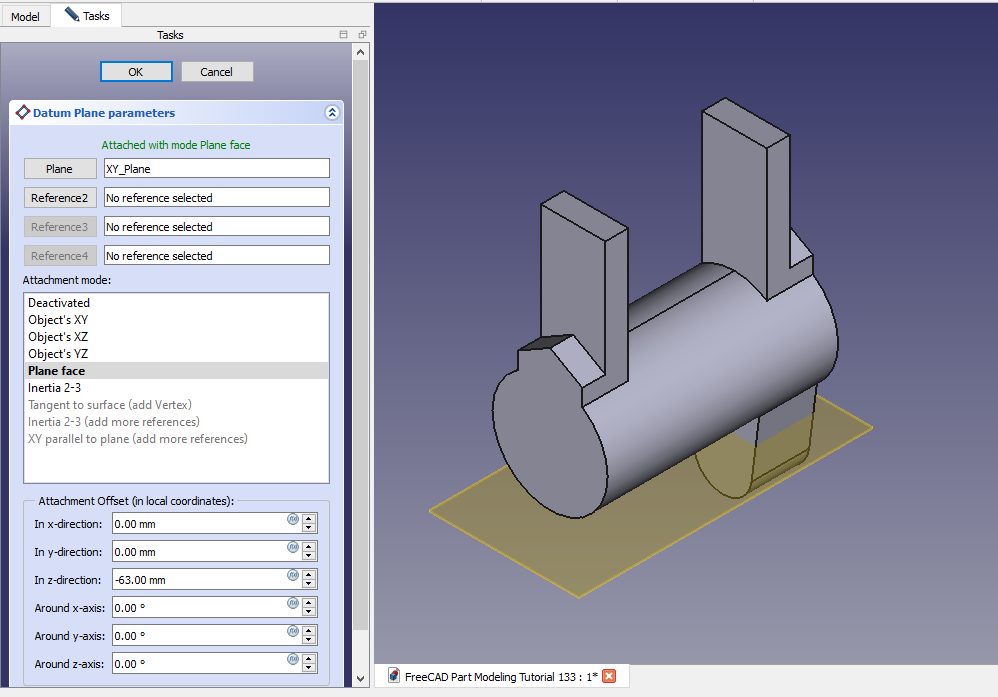 Now create the below sketch on datum plane.
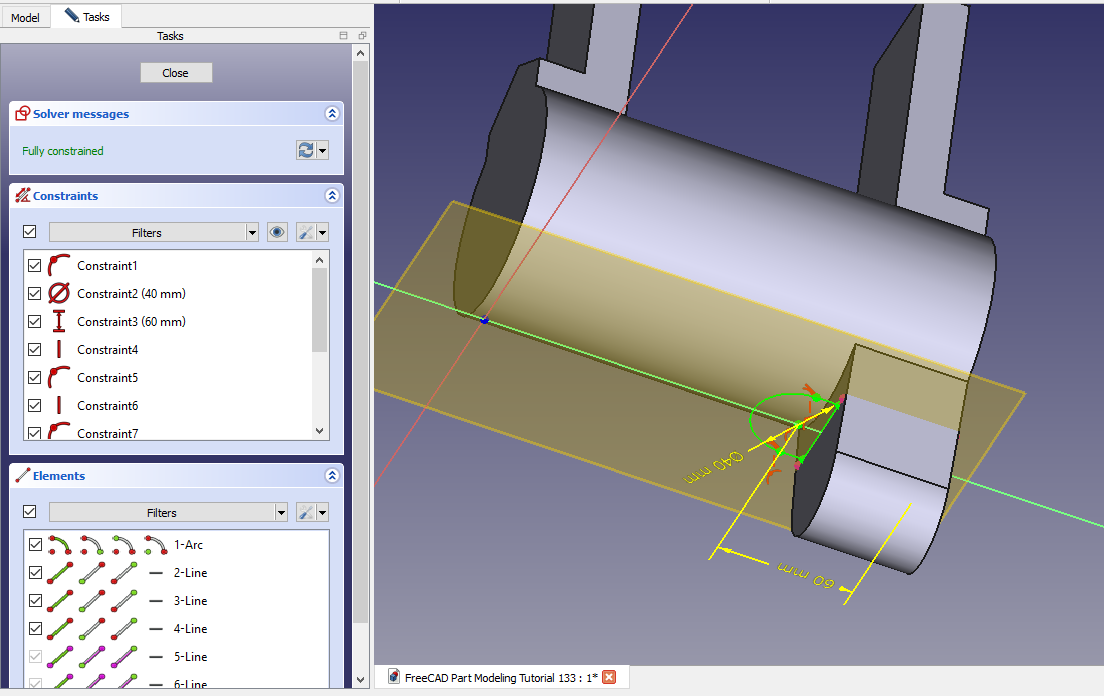 Now create Pad as shown in below image.
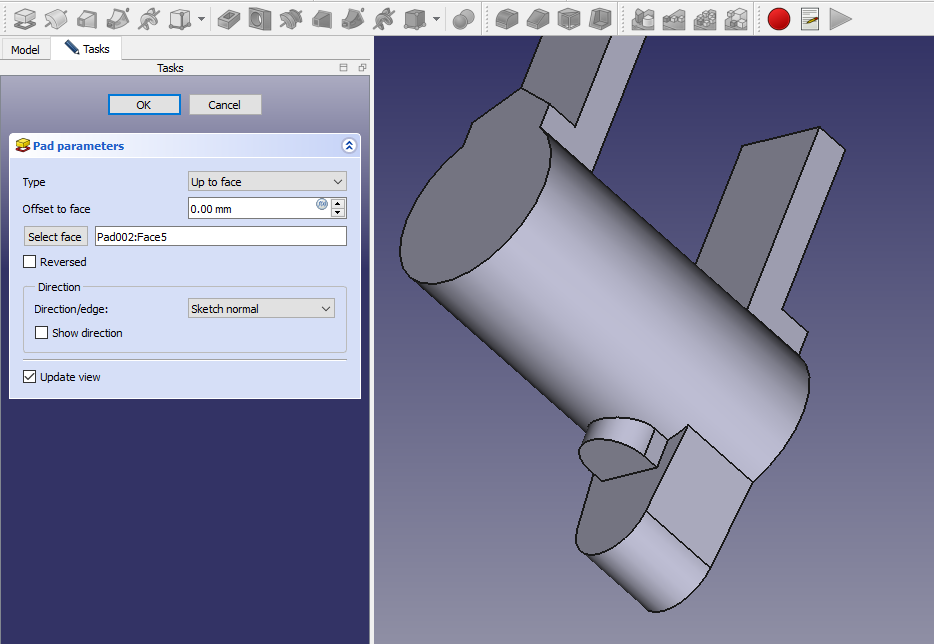 Now create the groove sketch as shown in below image.
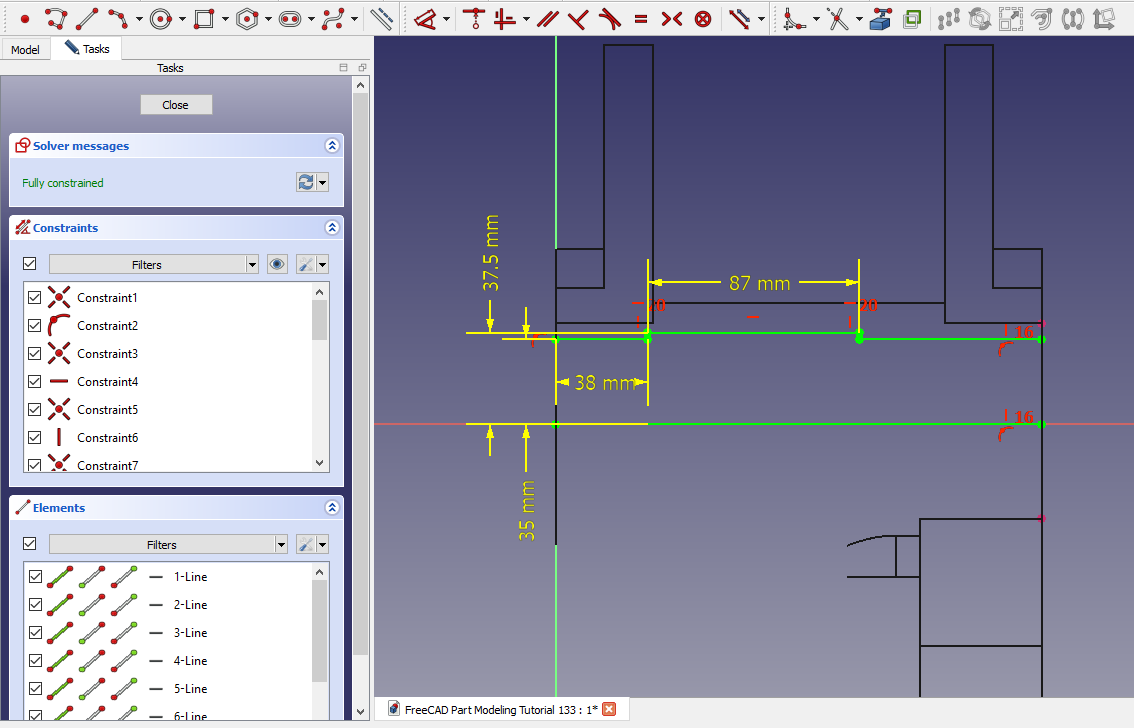 Now create the groove along Y axis as shown in below image.
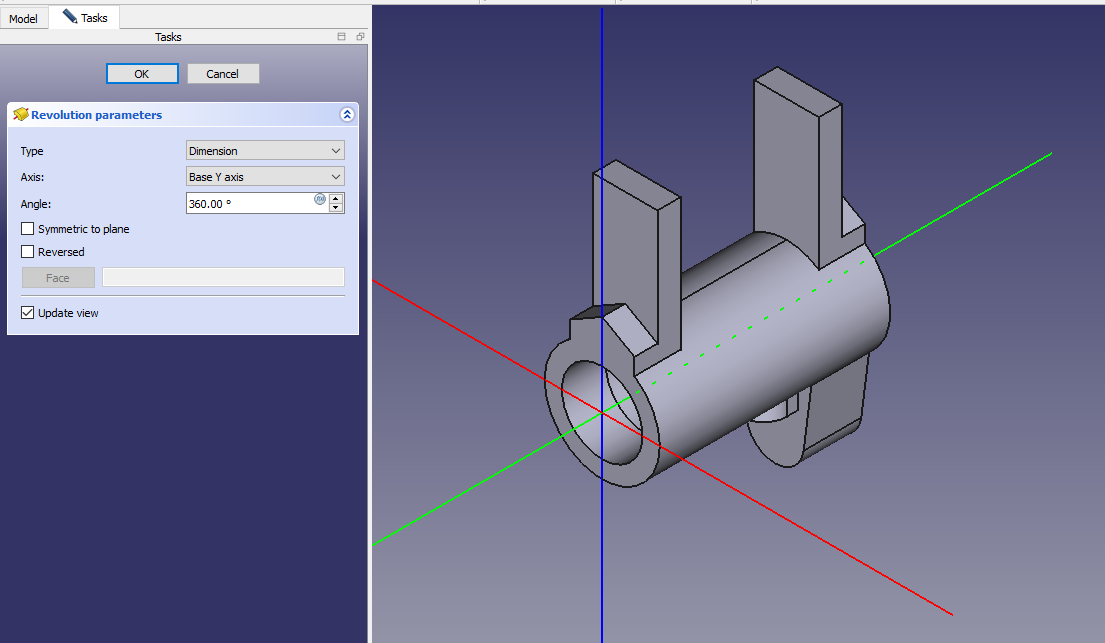 Create the hole sketch as shown in below image.
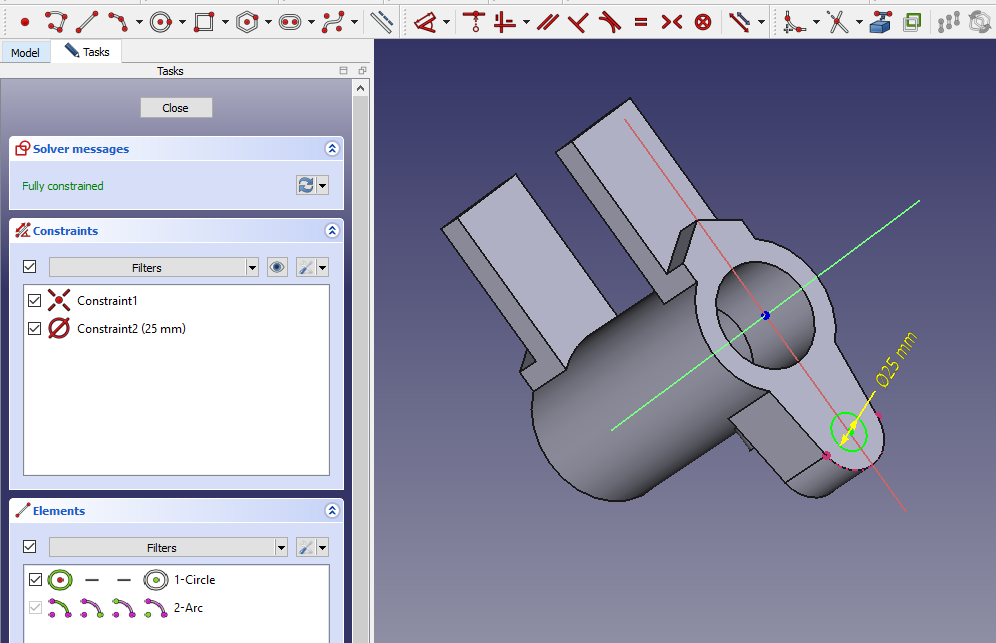 Create the hole and set end condition through all as show in below image.
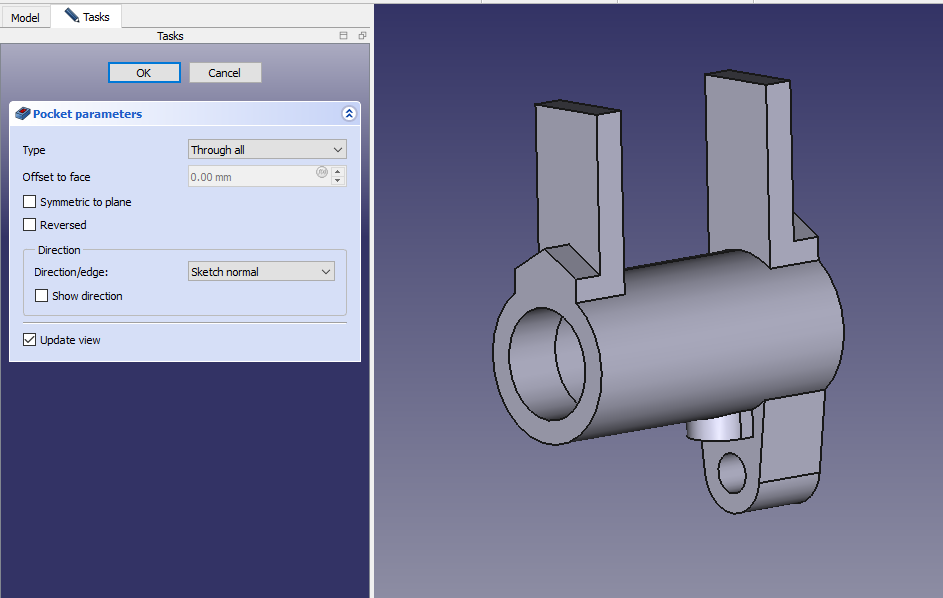 Create the hole sketch as shown in below image.
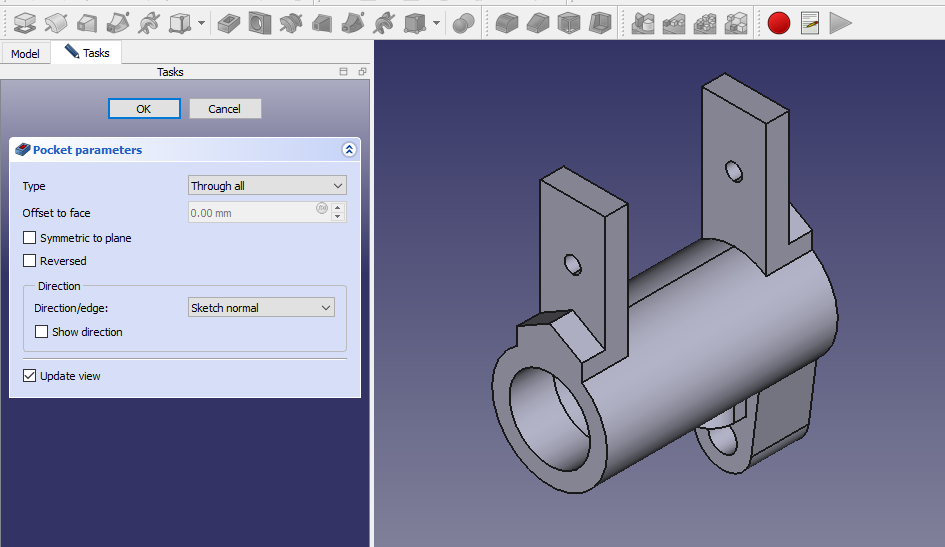
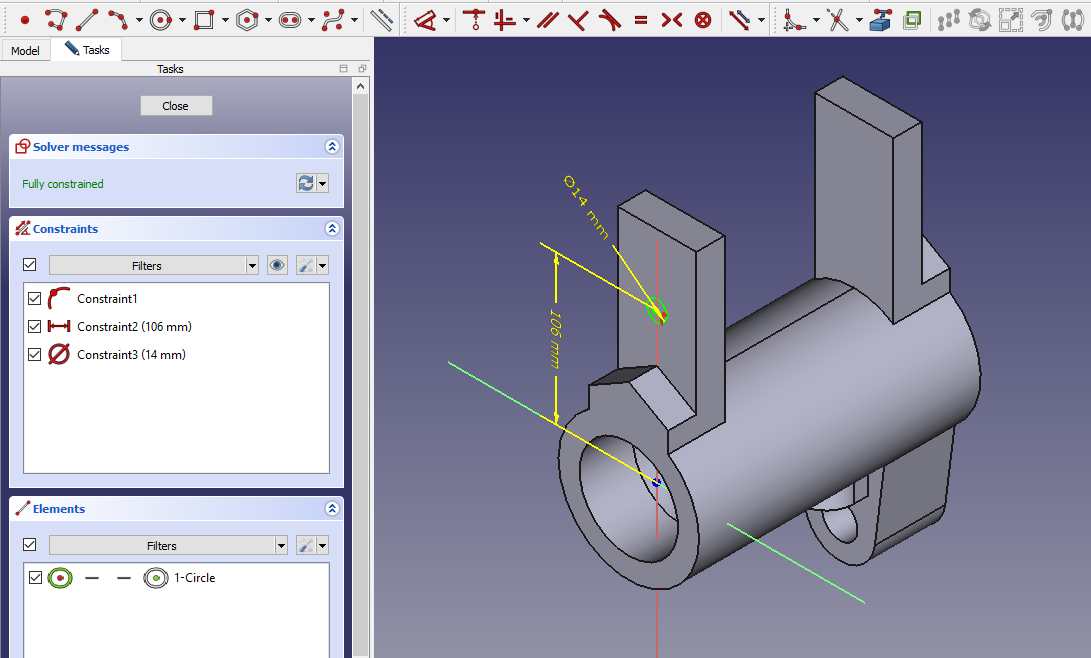 Now create the hole as shown in below image.
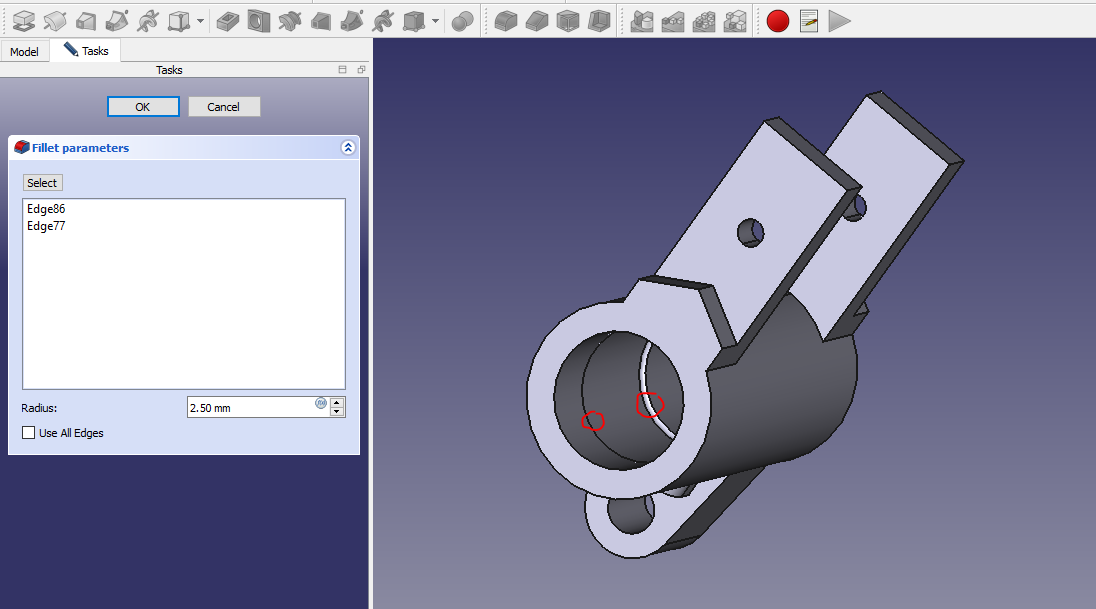
 Now create the fillet inside the cut as shown in below image.
 Now create the Hole sketch as shown in below image.
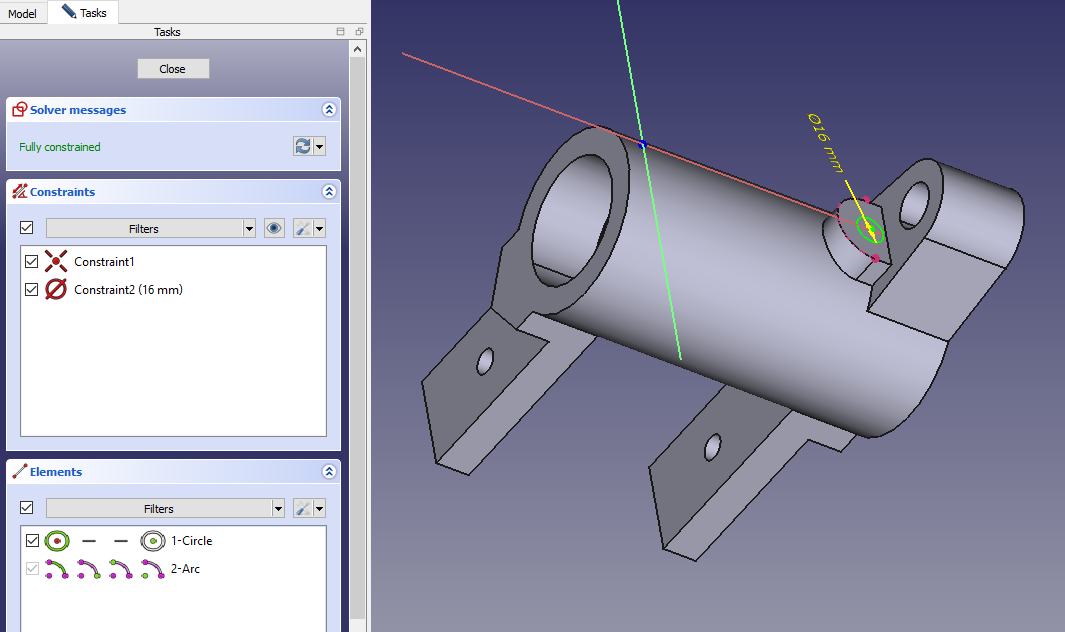 Now create the hole and set depth 35mm which is approximate.
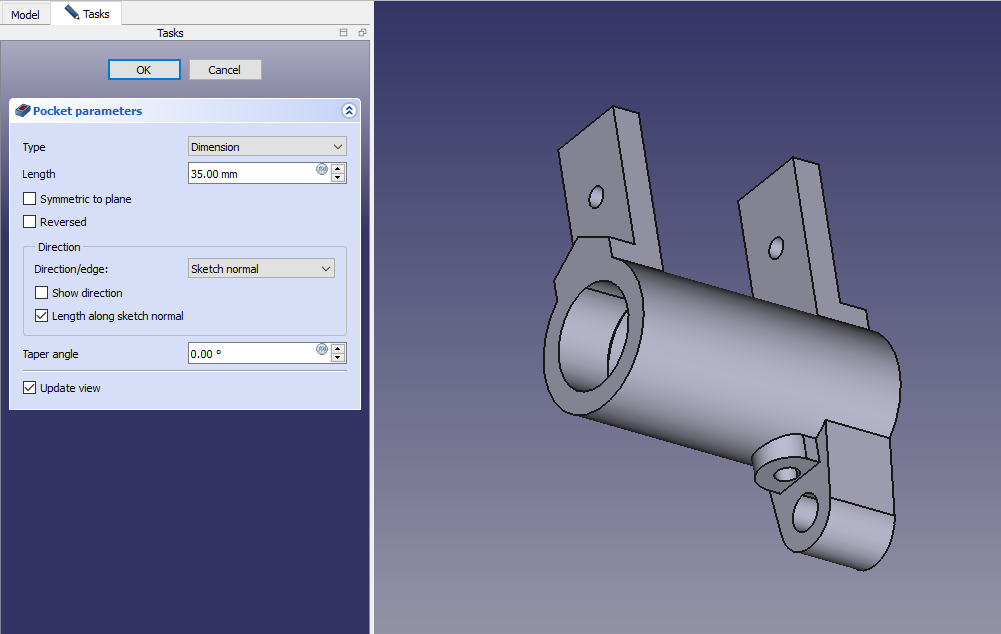 Create the fillet as shown in below image.
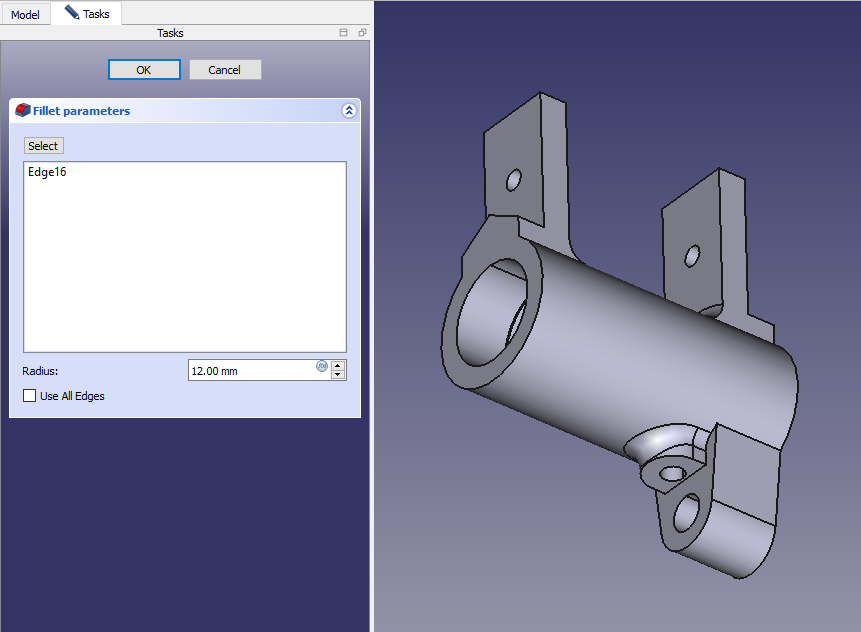
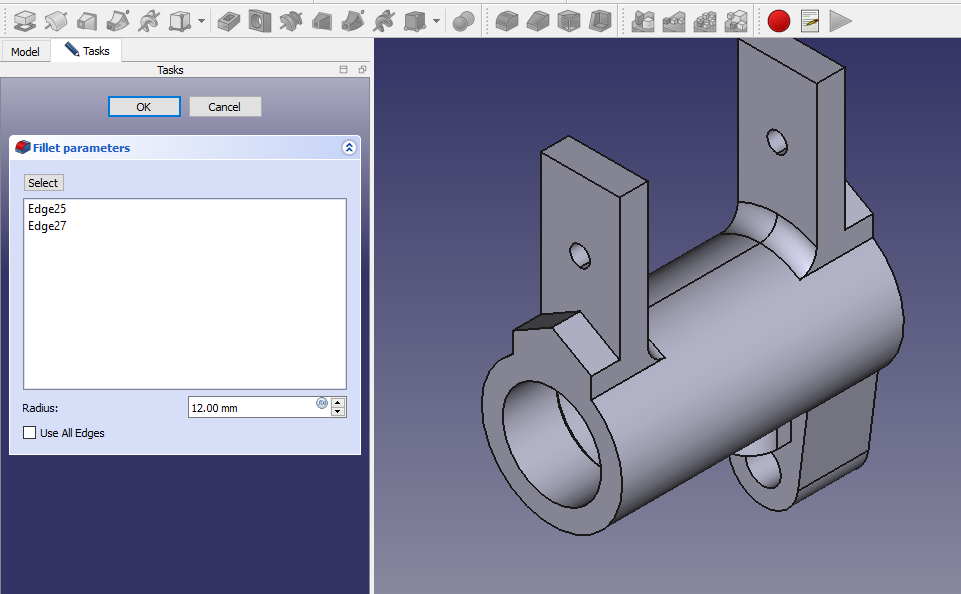 Now create the fillet as shown in below image.
“Thank you for reading! If you found this article insightful and valuable, consider sharing it with your friends and followers on social media. Your share can help others discover this content too. Let’s spread knowledge together. Your support is greatly appreciated!”
