FreeCAD is a powerful open-source parametric 3D modeling software, but mastering it can be challenging without the right resources. Luckily, there are numerous free learning materials available for FreeCAD users to enhance their skills and knowledge. One of the most popular resources is the FreeCAD documentation, which includes detailed tutorials, user guides, and FAQs to help users navigate through the software efficiently. Additionally, online forums like the FreeCAD forum and Reddit’s r/FreeCAD community provide a platform for users to ask questions, share tips and tricks, and collaborate with other users.
- Also Read-:
YouTube channels such as Joko Engineering and AllVisuals4U offer comprehensive video tutorials on various aspects of FreeCAD, making complex concepts easier to understand. Overall, these free learning resources cater to different learning styles and levels of expertise in FreeCAD, allowing professionals to improve their proficiency in 3D modeling without breaking the bank. FreeCAD is a powerful open-source CAD software, and there are many free resources available to help you learn, use, and expand its capabilities. Below is a list of free resources for FreeCAD users, including places to find models, tutorials, and community support.
1. FreeCAD Official Resources-:
🌐 The Main Website and Documentation
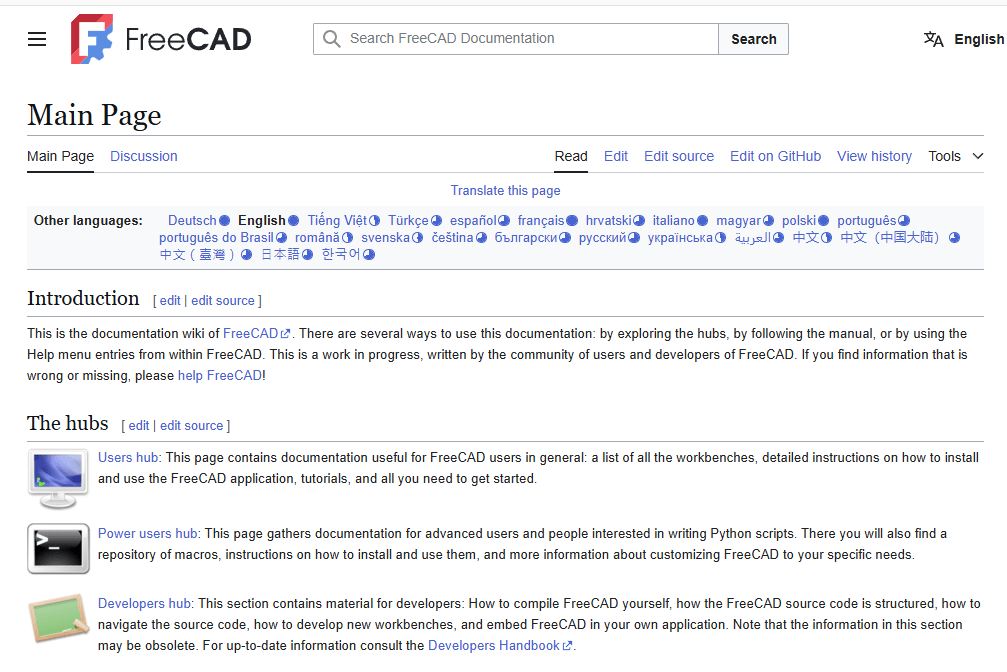
The journey begins at the official website (freecad.org), which serves as the central hub for downloading the software and finding the latest news about the project. For in-depth learning, the FreeCAD Documentation Wiki is the primary knowledge base. It contains everything from the User Hub for beginners to the Power Users Hub for those interested in Python scripting.
💬 Community and Help
When you need assistance, the FreeCAD forum is the most active and recommended place to ask questions and get help from the community. For real-time chat, you can connect with other users and developers on the official Discord server or the #freecad IRC channel on libera.chat.
💻 Development and Contribution
For those interested in the inner workings or contributing to the code, the GitHub repository hosts the entire source code. It’s also where you can report bugs or suggest new features through the issue tracker. Complementing this is the Developer Documentation, which provides the technical details needed to compile FreeCAD, understand its architecture, and start contributing code.
- FreeCAD Website: https://www.freecad.org/
- Download the latest version of FreeCAD.
- Access official documentation and user manuals.
- FreeCAD GitHub Repository: https://github.com/FreeCAD/FreeCAD
- Report bugs, request features, or contribute to the development of FreeCAD.
- FreeCAD Wiki: https://wiki.freecad.org/
- Comprehensive documentation, tutorials, and guides for all FreeCAD workbenches and tools.
Also Read-:
- Setup Auto Spacing in FreeCAD Sketcher
- Insert Surface Finish Symbol in FreeCAD Drawing
- Visit My FreeCAD Video Tutorial Library
2. FreeCAD Communities and Forums-:
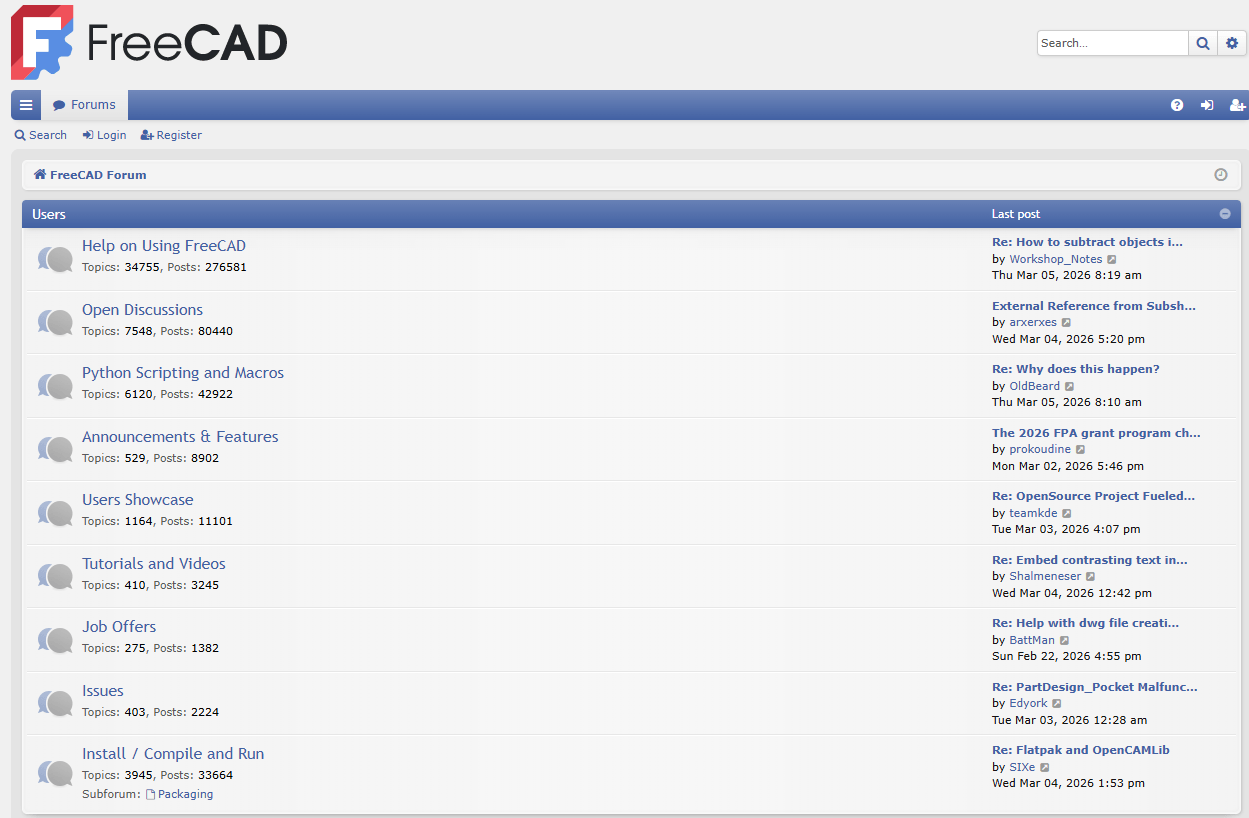
The FreeCAD community is a global, eclectic group of users, developers, and enthusiasts who collaborate to develop and support the open-source software. The community is built on the principles of openness and volunteer contribution, making it a welcoming space for anyone interested in 3D modeling.
Here is a brief overview of the primary communities and forums where you can find help, share your work, and get involved.
🌐 The Main Community Hubs
The central meeting point for the community is the FreeCAD forum . It is the best place for asking questions, getting support, and discussing development. You’ll typically receive multiple replies to a good question within the same hour. To participate, you need to register for an account, and your first post is moderated to prevent spam.
In addition to the main forum, the community is active across several real-time chat and social platforms. The table below summarizes these key options.
| Platform | Purpose / Best For | Key Details |
|---|---|---|
| Official Forum | In-depth discussions, technical support, showcasing work, development conversations. | The primary hub; search before asking; very active. |
| Discord | Real-time chat, quick questions, community interaction. | Official server with channels for various sub-topics. |
| Telegram | Real-time chat, quick questions. | Group: t.me/FreeCAD_EN. |
| Community discussions, sharing work, Q&A. | Subreddits: r/FreeCAD, r/flossCAD. |
|
| IRC | Real-time chat, legacy platform. | Channel: #freecad on Libera.Chat. |
| Community group, sharing. | Public group for FreeCAD users. | |
| Mastodon | Official announcements, following developers. | Official account: @FreeCAD@fosstodon.org. |
| X (Twitter) | Official announcements, following developers. | Official account: @FreeCADNews. |
🚀 Getting Involved
As a community-driven project, FreeCAD welcomes contributions of all kinds, not just programming. You can help by:
-
Spreading the word: Sharing your work on social networks helps others discover FreeCAD.
-
Helping newcomers: Answering questions on the forum is a valuable way to give back as you gain experience.
-
Reporting bugs: If you find a problem, report it on the bug tracker after discussing it on the forum.
-
Writing documentation: The FreeCAD wiki is written and maintained by community members and always needs improvement.
-
Translating: You can help translate the software interface on Crowdin or translate the wiki documentation.
- FreeCAD Forum: https://forum.freecad.org/
- Connect with other FreeCAD users, ask questions, and share your projects.
- Reddit FreeCAD Community: https://www.reddit.com/r/FreeCAD/
- A friendly community for discussions, tips, and troubleshooting.
- FreeCAD Discord Server: https://discord.gg/5u4fK9w
- Real-time chat with FreeCAD users and developers.
Also Read-:
- Measure Area, Volume & Center of Mass with Python Script
- Visit My FreeCAD Video Tutorial Library
- Import Existing FreeCAD Setting on Fresh FreeCAD Installation
3. FreeCAD Tutorials and Learning Resources-:
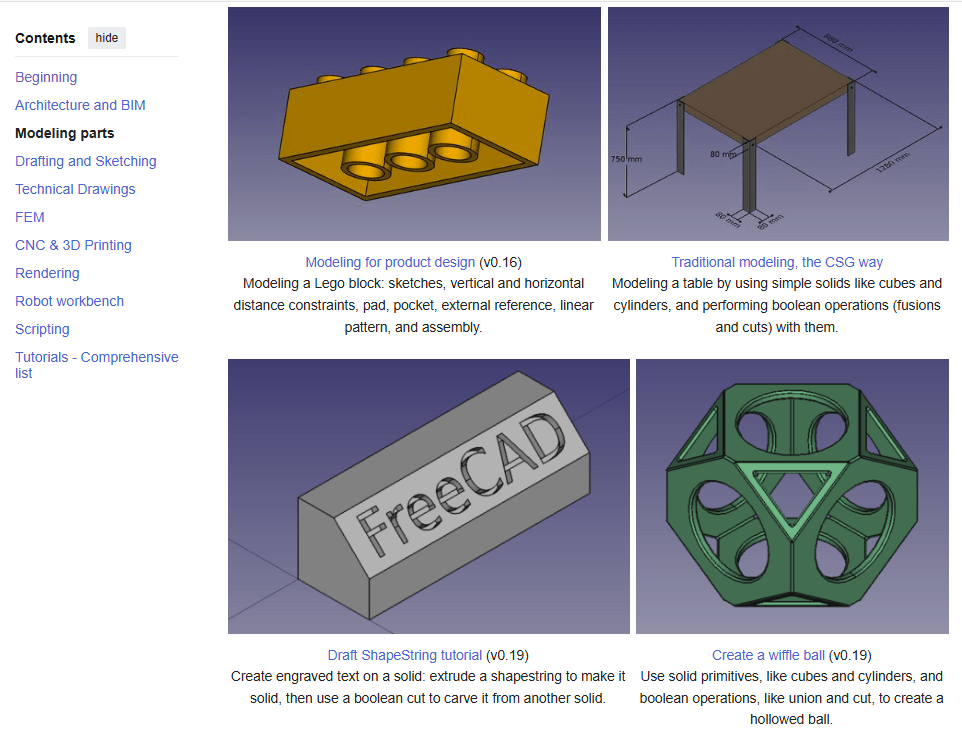
FreeCAD offers a wealth of learning materials, ranging from the official documentation wiki to community-driven video tutorials and comprehensive books. Here is a brief overview to help you navigate the available resources and find the best path for your learning style and goals.
The table below summarizes the main types of resources to help you get started.
| Resource Type | Examples | Format | Best For | Notes |
|---|---|---|---|---|
| Official Documentation | FreeCAD Wiki, Tutorials page | Written guides, reference | In-depth understanding, specific tool lookups | The most authoritative source; community-maintained; includes version-specific tutorials. |
| Books | “FreeCAD 1.0.2 User Guide” | Comprehensive written guide | Structured learning, reference | Commercial books offer structured curricula; ensure they cover your FreeCAD version. |
| Video Tutorial Series | DigiKey’s 10-part Intro series, YouTube | Video | Visual learners, step-by-step project walkthroughs | Often project-based; DigiKey series uses v0.22/v1.0RC1 and includes accompanying files. |
| Workbench-Specific Written Tutorials | Basic Part Design Tutorial, Sketcher Lecture, CAM tutorial | Written guides with images | Mastering specific workbenches (PartDesign, Sketcher, CAM, FEM, etc.) | Available on the FreeCAD Wiki; range from beginner to advanced. |
| Community & Forums | FreeCAD Forum, Discord, Reddit | Discussion boards, chat | Getting help, troubleshooting, sharing work | Ideal for asking specific questions when stuck on a tutorial or project. |
| Project-Based Learning | Raspberry Pi tutorials, DigiKey SD card holder | Step-by-step project guides | Learning by building practical objects | Great for staying motivated; teaches workflow, not just isolated tools. |
📚 A Closer Look at Key Resources
-
The Official FreeCAD Wiki: The central hub for documentation is the FreeCAD wiki, and its Tutorials page is your best starting point. It offers a curated selection of high-quality written tutorials organized by topic, such as Architecture and BIM, Modeling parts, Drafting and Sketching, FEM, and CNC & 3D Printing. For absolute beginners, the Basic Part Design Tutorial is an essential read to understand the parametric modeling workflow. Always check the FreeCAD version noted in the tutorial, as tools may have changed.
-
Structured Video Courses: For those who prefer watching over reading, the DigiKey 10-part “Introduction to FreeCAD” series is an excellent modern resource. Created with FreeCAD v0.22/v1.0RC1, it addresses the topological naming problem and guides you through practical projects like designing an SD card holder, from sketch to 3D print. The series includes both videos and written guides with downloadable files.
-
Project-Based and Community Tutorials: Learning by doing is highly effective. The Raspberry Pi project offers simple, beginner-friendly tutorials for modeling objects like a die, a headphone tidy, or a chess set. For more specialized guidance, the wiki provides tutorials for specific workbenches, such as creating a 2D floor plan with the Draft workbench or preparing a model for CNC machining with the CAM workbench. When you inevitably get stuck, the FreeCAD Forum is an invaluable resource for asking questions and finding solutions.
💡 Tips for Your Learning Journey
-
Start with the official tutorials: They are designed to introduce you to the core philosophy of parametric design, which is crucial for building stable, editable models.
-
Follow along with a project: Pick a tutorial for a simple object you’d like to create, like the SD card holder, and build it step-by-step.
-
Don’t hesitate to use multiple resource types: You might watch a video to understand a concept, then refer to a written tutorial for the exact steps, and finally ask a question on the forum to clarify a specific issue.
-
Pay attention to software versions: FreeCAD is actively developed. Using a tutorial for an older version (e.g., v0.16 or v0.17) can be confusing, as the interface and tools may have changed significantly. Look for resources that mention v0.19, v0.20, or newer.
With this combination of official documentation, structured video series, and hands-on projects, you’ll find a learning path that suits your style. Given your interest in offering Mechanical CAD services, focusing on the PartDesign, Sketcher, and TechDraw tutorials will build a strong foundation for creating manufacturing-ready models.
- YouTube Channels:
- Joko Engineeringhelp: https://www.youtube.com/c/JokoEngineeringhelp
- Beginner-friendly FreeCAD tutorials and tips.
- MangoJelly Solutions: https://www.youtube.com/c/MangoJellySolutions
- In-depth FreeCAD tutorials and workflows.
- Brodie Fairhall: https://www.youtube.com/c/BrodieFairhall
- Tutorials focused on 3D printing and design.
- Joko Engineeringhelp: https://www.youtube.com/c/JokoEngineeringhelp
- FreeCAD Academy: https://freecadacademy.com/
- Free and paid tutorials for learning FreeCAD.
- Learn FreeCAD: https://learnfreecad.com/
- Step-by-step tutorials for beginners.
Also Read-:
- Visit My FreeCAD Video Tutorial Library
- How to Clone and Rotate Body in FreeCAD
- Free Online Tool to View CAD Files
4. FreeCAD Models and Libraries-:
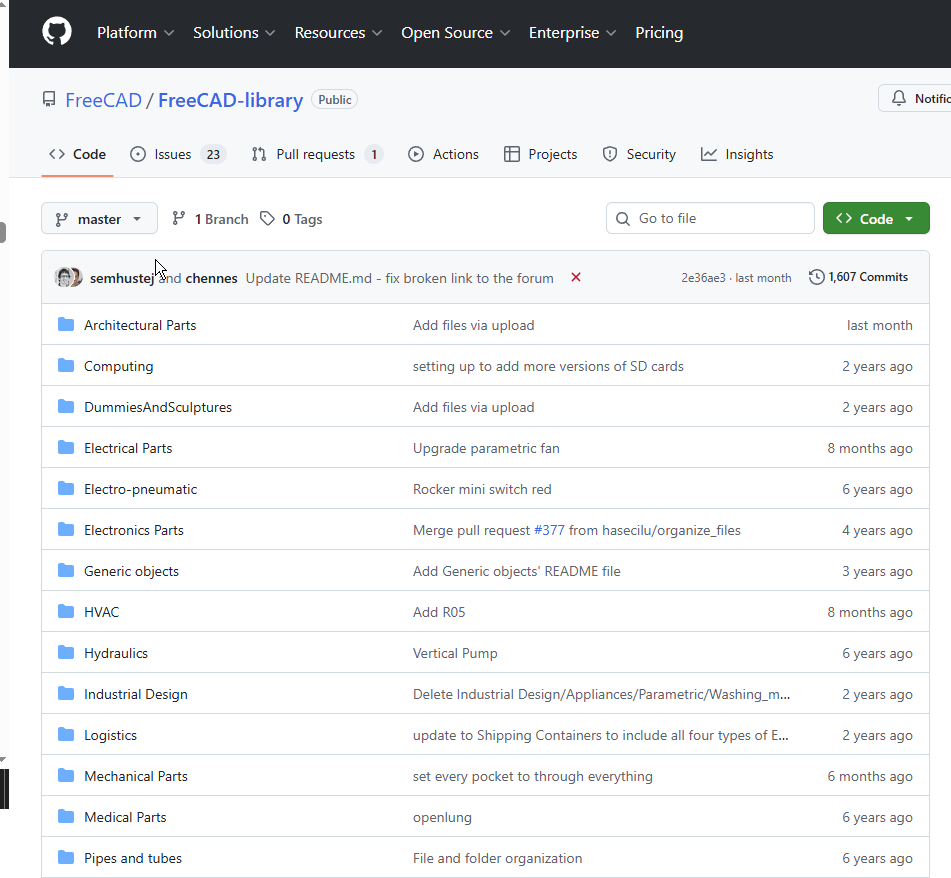
FreeCAD models and libraries are excellent learning resources that allow you to study completed designs, understand parametric workflows, and reuse existing components in your own projects. Here’s a brief overview of the key resources available.
📚 Pre-built Models for Study and Deconstruction
Studying completed models is one of the most effective ways to understand FreeCAD’s parametric workflow and design philosophy.
| Resource | Description | Learning Value | Access Method |
|---|---|---|---|
| FreeCAD Example Files | Built-in example models included with FreeCAD installation. | Study how parametric models are constructed; examine feature trees and constraint strategies. | File → Open, navigate to Mod folder in installation directory. |
| Basic Part Design Tutorial File | Example .FCStd file from the official Basic Part Design Tutorial. |
Follow along with the tutorial while examining the completed model; understand sketch-based design. | GitHub Examples Repository. |
| DigiKey Tutorial Files | Complete set of FreeCAD files from the 10-part DigiKey tutorial series, including assembly examples. | Study multi-part assemblies and moving mechanisms; see professional workflow examples. | ShawnHymel’s GitHub Repository. |
| Raspberry Pi Projects | Beginner-friendly projects including dice, headphone tidy, and chess set designs. | Excellent for absolute beginners; simple designs that teach fundamental concepts. | Raspberry Pi Learning Repository. |
🧩 Parts Libraries for Reusable Components
Parts libraries provide collections of pre-made components that you can study, modify, and incorporate into your designs. This is particularly valuable for learning how parametric parts are constructed while building your design efficiency.
| Library | Description | Key Features | Installation |
|---|---|---|---|
| FreeCAD Parts Library | Official community-maintained library of parts for various disciplines (mechanical, electrical, architectural, etc.). | – Contains objects in .FCStd, .STEP, and .BREP formats.– CC-BY 3.0 licensed – free to use with attribution. – Organized by categories (Mechanical Parts, Electrical Parts, HVAC, etc.). – Warning: ~1GB size – may take time to download. |
Via Addon Manager (Tools → Addon Manager) as ‘parts_library’. |
| Thingiverse | Massive community platform for 3D printable models. | Search for “FreeCAD” to find compatible files; learn how others approach similar design problems. | Web browser at thingiverse.com. |
| GrabCAD | Professional CAD model library with large FreeCAD collection . | Study mechanical designs from engineering professionals; access diverse component libraries. | Web browser at grabcad.com. |
| Open Source Ecology | Collection of open-source hardware designs. | Learn sustainable design principles; study complete product designs. | Open Source Ecology Wiki. |
🏗️ Specialized Model Collections
For specific disciplines, there are curated collections that serve both as learning resources and practical design tools.
| Collection | Focus Area | Learning Opportunities | Access |
|---|---|---|---|
| IFC Example Models | Architectural/BIM models in IFC format. | Study building structure hierarchy (IfcProject → IfcSite → IfcBuilding → IfcBuildingStorey). Learn proper BIM data organization. | – buildingSMART Sample Files – BIMPlot Collections |
| Fasteners Workbench | Standard fastener library (screws, nuts, bolts, washers). | Study parametric part design; learn how threaded components are modeled. | Via Addon Manager: Tools → Addon Manager → Fasteners Workbench. |
💡 Practical Tips for Using Models and Libraries as Learning Tools
To maximize your learning from these resources:
1. Deconstruct Before You Build
Open completed .FCStd files and examine the Combo View tree structure. See how experienced users organize their sketches, features, and constraints. Pay attention to naming conventions and feature dependencies.
2. Compare File Formats
Many library parts are available in both .FCStd (parametric) and .STEP (exchange) formats. Open both to understand the difference between editable parametric models and static geometry. This teaches you what information is preserved versus lost when exchanging formats.
3. Modify Existing Parts
Take a library component and modify its parameters. Change dimensions, add features, or combine multiple parts. This teaches you parametric design principles while building confidence.
4. Check Licensing
The FreeCAD Parts Library uses CC-BY 3.0 – you must attribute the original author. Other platforms have varying licenses; always verify before using components commercially.
5. Use the Macro Browser
The Parts Library includes a PartsLibrary.FCMacro tool that creates a browser window inside FreeCAD for easily adding parts to your projects. This is an excellent way to learn how macros can extend FreeCAD’s functionality.
6. Focus on Quality Examples
Not all IFC files are created equal – some may be poorly exported and full of junk data. Stick to reputable sources like buildingSMART’s canonical examples when learning proper BIM workflows.
- Thingiverse: https://www.thingiverse.com/
- Search for FreeCAD models shared by the community. Use the keyword “FreeCAD” to find compatible files.
- GrabCAD: https://grabcad.com/
- A large library of CAD models, including FreeCAD files.
- FreeCAD Models on GitHub: https://github.com/FreeCAD/FreeCAD-library
- A collection of FreeCAD models and parts for various applications.
- Open Source Ecology: https://wiki.opensourceecology.org/wiki/FreeCAD
- FreeCAD models and designs for open-source hardware projects.
Also Read-:
- Easily Rotate Sketch in FreeCAD
- Visit My FreeCAD Video Tutorial Library
- Easily Slice Part with Plane in FreeCAD
5. FreeCAD Add-ons and Macros-:
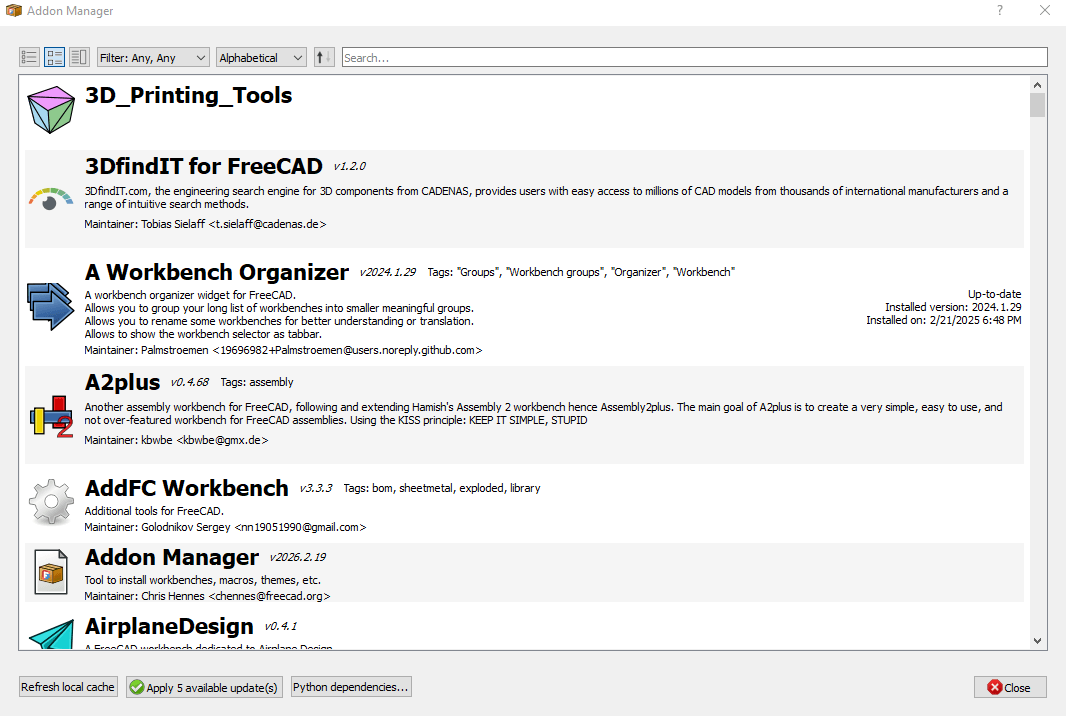
FreeCAD’s functionality can be significantly extended through Add-ons, which are external tools not included in the base installation. These come in two main flavors: Macros and External Workbenches. Learning to use and even create these tools is a fantastic way to boost your productivity and customize the software to your specific needs, especially for someone offering Mechanical CAD services.
Here’s a brief overview to get you started.
🧩 What are Add-ons and Macros?
It’s helpful to understand the distinction between the two primary types of add-ons:
| Feature | Macros | External Workbenches |
|---|---|---|
| Description | A sequence of commands (a Python script) used to perform a complex or repetitive drawing operation. Think of it as a “super-shortcut” for tasks. | A collection of tools and graphical interfaces focused on a specific task, like sheet metal design or PCB work. They often contain multiple macros and complex functionality. |
| File Format | Single text file with a .FCMacro extension. |
A folder containing various Python files, resources, and possibly icons. |
| Complexity | Simple to moderately complex. Ideal for automating small, specific tasks. | Highly complex. Can introduce a completely new set of tools and a new workbench dropdown in the interface. |
There is also a third, less common type called a Preference Pack, which allows you to share sets of user preferences.
⚙️ How to Install and Use Them
The easiest and recommended way to install both macros and external workbenches is through the built-in Addon Manager.
-
Open FreeCAD and go to the menu: Tools → Addon Manager.
-
The Addon Manager window will open, showing a list of available workbenches and macros. You can browse or search for what you need.
-
Find the add-on you want, select it, and click the Install/Update button. The Addon Manager handles the download and installation automatically.
For macros, there are also manual installation methods, which can be useful if you’re developing your own or testing code. This generally involves:
-
Finding the macro’s code (e.g., on the Macros recipes page).
-
Opening FreeCAD’s Macro → Macros… dialog, clicking Create, giving it a name, and pasting the code into the editor that opens.
Once installed, you can run a macro from the Macro → Macros… menu, and a new workbench can be selected from the workbench dropdown. You can even assign custom keyboard shortcuts or toolbar buttons to your macros via the Tools → Customize menu.
📚 Learning Resources
Here are the best places to deepen your knowledge of FreeCAD add-ons and macros.
| Resource Type | Examples | Description & Notes |
|---|---|---|
| Official Documentation | Macros, How to install macros, External workbenches, Addon Manager | The FreeCAD wiki is your primary resource. It contains detailed explanations, lists of available add-ons, and the “Macros recipes” page with user-contributed scripts. |
| Community & Repositories | FreeCAD Forum (Python Scripting and Macros subforum), FreeCAD-macros GitHub repository | The forum is the best place to ask questions, get feedback on your own macros, and find announcements for new tools. The GitHub repo is the official, peer-reviewed collection of macros. |
| Video Courses | “Master Productivity Tools in FreeCAD” on Udemy | While not official, structured video courses can be very helpful for visual learners. This one covers macros and workbenches for FreeCAD 1.0, assuming you have basic experience. |
| Scripting Fundamentals | Introduction to Python, Python scripting tutorial, FreeCAD Scripting Basics | To write or customize macros, you’ll need some understanding of Python. These official wiki pages are the perfect starting point. |
For a mechanical designer like yourself, some of the most valuable add-ons might be the Fasteners Workbench for adding standard nuts and bolts and the Parts Library for accessing a huge repository of ready-made components. Mastering these, and even learning to create simple macros to automate repetitive tasks in your workflow, could be a significant time-saver.
- FreeCAD Macro Repository: https://wiki.freecad.org/Macros_recipes
- A collection of useful macros to automate tasks in FreeCAD.
- FreeCAD Add-ons Manager:
- Access built-in add-ons directly from FreeCAD:
- Go to Tools > Add-on Manager.
- Browse and install additional workbenches, macros, and extensions.
- Access built-in add-ons directly from FreeCAD:
- GitHub FreeCAD Macros: https://github.com/FreeCAD/FreeCAD-macros
- A repository of macros for FreeCAD.
Also Read-:
- How to install FreeCAD Wiki documentation offline
- Visit My FreeCAD Video Tutorial Library
- Essential FreeCAD Tips for Faster Modeling
6. FreeCAD Templates and Examples-:
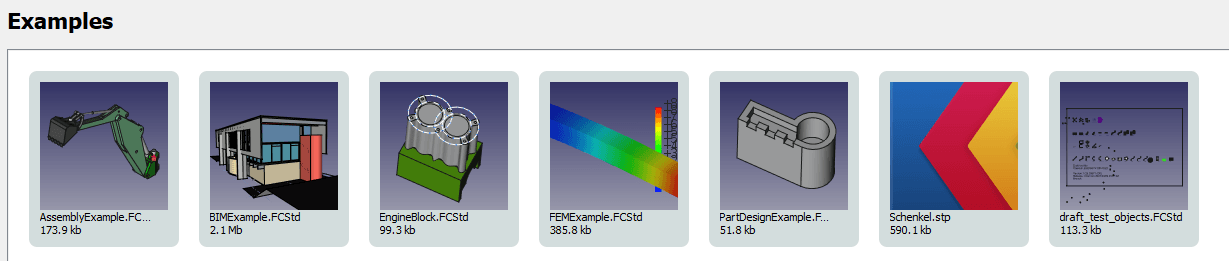
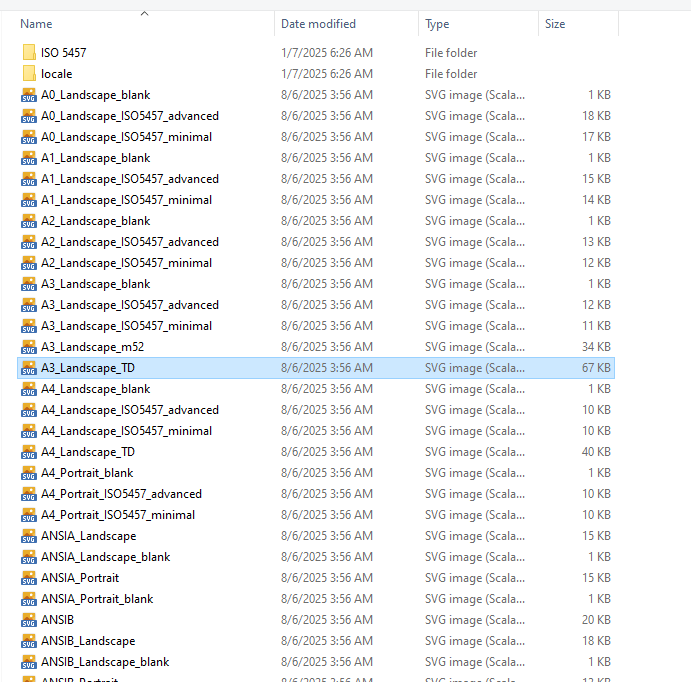
Templates and example files are excellent resources for learning FreeCAD efficiently. Templates provide pre-formatted starting points for technical drawings, while example models allow you to deconstruct complete designs to understand professional workflows.
Here’s a brief overview of how you can use these resources to accelerate your learning, especially for mechanical CAD services.
📄 Templates: Your Starting Point for Technical Drawings
Templates in FreeCAD are primarily used with the TechDraw Workbench to create professional technical drawings. They define the paper size, borders, and title blocks for your documentation.
| Resource Type | Description | Learning Value | Access / Location |
|---|---|---|---|
| Built-in Templates | FreeCAD includes standard templates (A0-A4, US Letter, etc.) in various styles. | Study how professional title blocks are structured; examine frame dimensions and text placements. | TechDraw Workbench → Insert Page Using Template. Files located in $INSTALL_DIR/Mod/TechDraw/Templates/. |
| Custom SVG Templates | Create your own templates using Inkscape or other SVG editors. | Learn to add editable text fields (freecad:editable attribute) and understand FreeCAD’s SVG namespace requirements. |
Create in external editor, save as plain SVG, place in user template directory. |
| Community Template Collections | GitHub repositories and forum posts with user-contributed templates. | See how others handle different drawing conventions (ISO vs. US projections) and specialized title blocks. | FreeCAD GitHub Documentation; FreeCAD Forum. |
| DXF Templates | Templates for exporting drawings to DXF format. | Understand how to maintain consistent output across different file formats. | Same name/location as your SVG template, with .dxf extension. |
📦 Example Models: Learning by Deconstruction
Example files are complete FreeCAD documents (.FCStd) that you can open, examine, and modify. They are perhaps the most powerful learning resource because they show you how experienced users build parametric models.
| Resource Type | Description | Learning Value | Access / Location |
|---|---|---|---|
| Official Tutorial Examples | Files accompanying official tutorials like the Basic Part Design Tutorial. | Study the exact model created in the tutorial; examine sketch constraints, feature tree organization, and parametric relationships. | FreeCAD Examples Repository on GitHub. |
| Built-in Examples | Example files that come with FreeCAD installation [from previous discussion]. | Explore how various workbenches (PartDesign, Assembly, FEM) are used in complete projects. | File → Open, navigate to FreeCAD installation’s Mod folder. |
| IFC Example Models | Architectural/BIM example files in IFC format. | Learn proper BIM data organization (IfcProject → IfcSite → IfcBuilding → IfcBuildingStoreys hierarchy); understand what makes a quality IFC model versus poorly exported junk data. | buildingSMART Sample Files -2; BIMPlot Collections. |
| Community Example Files | Users sharing their completed designs on forums. | See real-world problem-solving approaches; learn different modeling strategies for similar problems. | FreeCAD Forum (especially the “Users Showcase” section). |
| DigiKey Tutorial Files | Complete set of FreeCAD files from the DigiKey tutorial series. | Study multi-part assemblies and professional workflow examples [from previous discussion]. | ShawnHymel’s GitHub Repository. |
💡 How to Use These Resources Effectively
1. Start with Official Tutorial Examples
The Basic Part Design Tutorial example file is perfect for beginners. Open it alongside the tutorial and examine:
-
How sketches are fully constrained (notice the color change when constrained)
-
The feature tree order (Pad → Pocket → etc.)
-
Naming conventions for sketches and features
2. Deconstruct Before You Build
Open example files and work backwards:
-
Hide features one by one to understand the construction sequence
-
Edit sketch dimensions to see how the model updates parametrically
-
Examine constraint strategies—notice which dimensions are driven and which are driving
3. Study Template Structure
Open built-in SVG templates in a text editor:
-
Look for the
freecad:editableattribute that creates editable text fields -
Examine the
<!-- working space -->comment that defines where views can be placed -
Note the SVG namespace declaration:
xmlns:freecad="http://www.freecadweb.org/wiki/index.php?title=Svg_Namespace"
4. Compare Different Approaches
Download multiple example files of similar parts:
-
Notice different modeling strategies (pad vs. revolve, additive vs. subtractive)
-
See how different users organize their feature trees
-
Learn various constraint techniques
5. Modify and Experiment
Take an example file and deliberately break it:
-
Change dimensions beyond reasonable limits
-
Delete constraints and see what happens
-
Add your own features to existing models
For someone offering mechanical CAD services, the official tutorial examples are essential for mastering parametric modeling fundamentals, while the template system will help you create professional, branded technical drawings for your clients.
- FreeCAD Template Library: https://wiki.freecad.org/Templates
- Download templates for drawings, parts, and assemblies.
- Example Projects:
- Explore example projects included with FreeCAD:
- Go to File > Open.
- Navigate to the
Modfolder in your FreeCAD installation directory to find example files.
- Explore example projects included with FreeCAD:
Also Read-:
- Let’s understand FreeCAD Part Workbench
- Visit My FreeCAD Video Tutorial Library
- FCViewer-: Easiest Way to Showcase FreeCAD Project
7. FreeCAD Plugins and Workbenches-:
Plugins and workbenches are at the heart of FreeCAD’s extensibility. As learning resources, they offer a unique opportunity to study specialized tools, understand advanced coding practices, and see how the software can be tailored to specific engineering domains like architecture, woodworking, or CFD.
Here is a brief overview of these add-ons and how to use them for learning.
🧩 What are Plugins and Workbenches?
In FreeCAD, an add-on is any component not part of the base installation. They come in three main types:
| Add-on Type | Description | Typical File Format |
|---|---|---|
| Macro | A short snippet of Python code that automates a repetitive task or adds a simple tool. | Single .FCMacro file. |
| External Workbench | A collection of Python files that provides a set of related GUI tools (toolbars, menus) centered around a specific task. | A folder containing Python scripts, icons, and resource files. |
| Preference Pack | A distributable collection of user preferences to customize the interface’s look and behavior (available since v0.20). | A package of configuration files. |
The recommended way to find and install all these add-ons is through the built-in Addon Manager (Tools → Addon Manager).
📚 Learning from External Workbenches
External workbenches are not just tools to use; they are a fantastic, in-depth learning resource. Here is how you can learn from them:
| Learning Opportunity | How to Use It | Example |
|---|---|---|
| Understand Tool Organization | See how a workbench structures its tools into menus and toolbars for a specific domain. | The Woodworking workbench organizes tools for furniture design, showing a logical workflow. |
| Solve Specific Problems | Study how a workbench solves a particular design challenge that the core workbenches don’t address. | The Curved Shapes workbench adds “guide rail” functionality for sweeps and lofts, enabling the creation of complex organic shapes like a boat hull, which is cumbersome to do manually. |
| Study Source Code (Python Workbenches) | Deconstruct the Python code to learn scripting and workbench development. The code is usually available in the workbench’s GitHub repository. | The Woodworking workbench has an API called MagicPanels.py with functions that attempt to solve the topological naming problem. You can study this to learn advanced FreeCAD Python techniques. |
| Learn from Example Files | Many workbenches include fully parametric example files that you can open, deconstruct, and modify. | The Woodworking workbench comes with a folder of fully parametric furniture examples (e.g., a bookcase) that you can adapt for your own projects. |
| Explore Development Practices | Examine how professional-grade workbenches handle version compatibility, translations, and user documentation. | The MOOC workbench uses a modular structure to add interactive tutorials and assessments, showing how to integrate a learning framework directly into FreeCAD. |
| Community Engagement | Use the forum threads and issue trackers for workbenches to see common problems and their solutions, and to interact with advanced developers. | The Woodworking workbench directs users to a specific FreeCAD forum thread for discussions and the GitHub issue tracker for bug reports. |
By exploring and deconstructing external workbenches, you move from being a user to a potential contributor, gaining deep insights into both specialized design domains and the inner workings of FreeCAD itself.
- Fasteners Workbench: https://github.com/shaise/FreeCAD_FastenersWB
- Add standard fasteners (screws, nuts, bolts) to your designs.
- A2Plus Workbench: https://github.com/kbwbe/A2plus
- A powerful assembly workbench for FreeCAD.
- Curves Workbench: https://github.com/tomate44/CurvesWB
- Advanced tools for working with curves and surfaces.
Also Read-:
- Visit My FreeCAD Video Tutorial Library
- How to Clone and Rotate Body in FreeCAD
- FreeCAD as An Open-Source Parametric 3D Modeling Software
8. FreeCAD for 3D Printing-:

FreeCAD is a powerful, free, and open-source tool for designing models for 3D printing. Its parametric nature allows you to easily modify designs by changing parameters in your model’s history. Here’s a brief overview of the process and the best resources to learn it.
🚀 The 3D Printing Workflow in FreeCAD
The journey from idea to printed object in FreeCAD follows a clear, logical path:
| Stage | Primary Goal | Key FreeCAD Tools/Concepts |
|---|---|---|
| 1. Solid Modeling | Create a precise, watertight 3D model of your object. | Part Design & Sketcher workbenches for parametric design. Ensure your model is a solid (no holes or non-manifold geometry). Use Part → Check Geometry to verify. |
| 2. Mesh Export | Convert your solid model into a mesh format that slicers can read. | Mesh Workbench. Select your model, go to Meshes → Create Mesh from Shape, and choose an algorithm (Standard is usually sufficient). The deviation value controls quality/loss of detail. Export as STL (the most common format). |
| 3. Slicing | Convert the mesh into G-Code instructions for your specific printer. | External software like PrusaSlicer (free, open-source) or Cura. Import your STL, configure settings (layer height, infill, supports), and slice to generate G-Code. |
| 4. Printing | Produce the physical object. | Your 3D printer and its control software/hardware. |
📚 Learning Resources for 3D Printing with FreeCAD
To master this workflow, a variety of excellent resources are available for all learning styles.
| Resource Type | Examples | Description & Notes | |
|---|---|---|---|
| Official Documentation | Manual: Preparing models for 3D printing | The definitive guide on the wiki. Covers solids, mesh conversion, and slicers in detail. Highly recommended starting point. | |
| Structured Video Series | DigiKey’s 10-part “Introduction to FreeCAD” | Excellent, project-based series for beginners. Part 2 focuses on designing an SD card holder, taking you from sketch to print. Includes accompanying files on GitHub. | |
| DrVax “FreeCAD for Beginners” | A YouTube series specifically introducing FreeCAD 0.19 and using it for 3D printing with Cura and PrusaSlicer. | ||
| **AllVisuals4U “3D MODELING | FREECAD”** | A 22-video series on modeling various objects for 3D printing and exporting to Blender (FreeCAD v0.17/0.18). | |
| Comprehensive Books | “FreeCAD Beginner’s Starter Kit” (Packt Publishing, 2024) by Aleksander Sadowski | A full-color guide teaching a reliable modeling workflow from idea to 3D-printable model. Covers Part Design, Sketcher, A2Plus assemblies, and the Mesh workbench for export. | |
| “FreeCAD Beginner’s Handbook” (Independently published, 2025) by Aleksander Sadowski | Another project-based book with step-by-step instructions, including a complex Mars Rover project. Covers preparing models for 3D printing with slicer software. | ||
| Community & Forums | FreeCAD Forum | Invaluable for troubleshooting specific problems, asking questions, and seeing how others approach 3D printing challenges. |
For someone offering Mechanical CAD services, mastering the parametric modeling workflow in the Part Design and Sketcher workbenches is the most critical foundation. From there, learning to consistently produce clean, manifold solids and export high-quality meshes will ensure your designs are always manufacturing-ready. The project-based video series and books are excellent for building this practical, end-to-end skillset.
- FreeCAD Path Workbench: https://wiki.freecad.org/Path_Workbench
- Generate toolpaths for CNC machines and 3D printers.
- 3D Printing Tutorials:
- Check out tutorials on designing for 3D printing with FreeCAD on YouTube or the FreeCAD Wiki.
Also Read-:
9. FreeCAD Books and Documentation-:
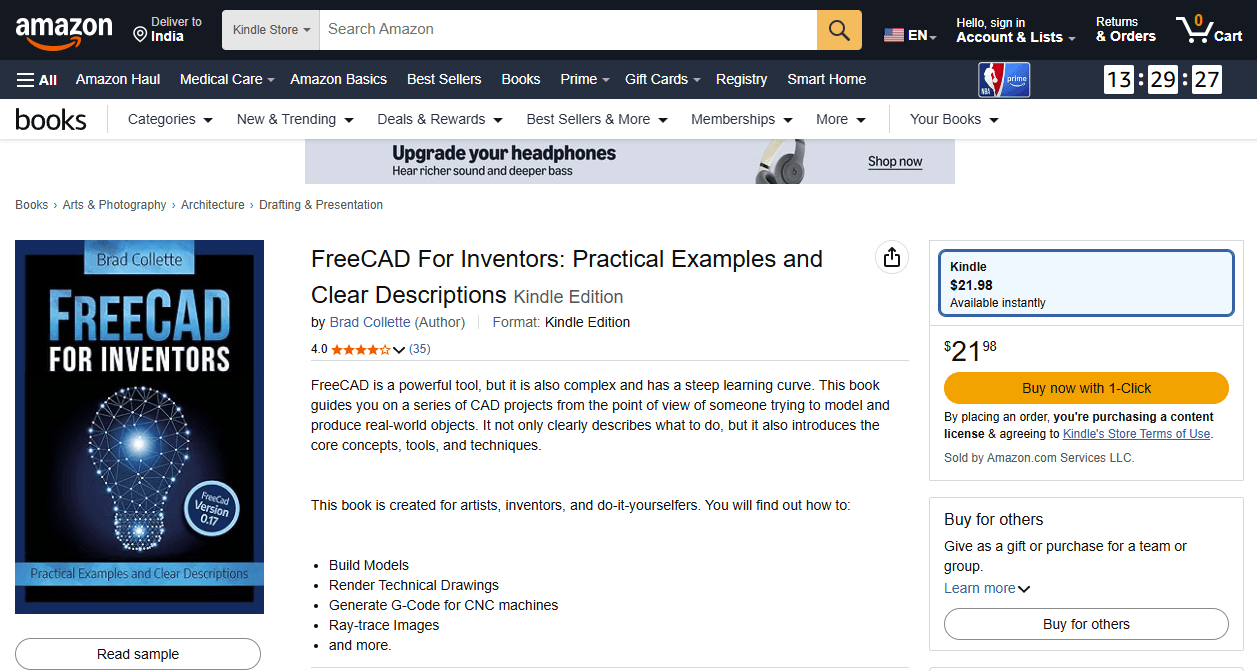
FreeCAD offers a rich ecosystem of learning materials, ranging from the official documentation wiki to an increasing number of high-quality books. The official documentation is always free and up-to-date, while books provide structured, guided learning paths—especially valuable since FreeCAD’s recent 1.0 release has stabilized the core workflow.
Here’s a brief overview of the key resources to help you navigate them effectively.
📚 Official Documentation: The Foundation
The FreeCAD Documentation Wiki is the authoritative, community-maintained knowledge base. It’s comprehensive and freely available.
| Resource | Best For | Key Contents |
|---|---|---|
| Online Help TOC | All users – your primary entry point | Complete table of contents covering installation, all workbenches, commands, and FAQs. |
| Manual | Beginners wanting a linear, book-like introduction | Gentle introduction to FreeCAD concepts, workflows, and key workbenches. Available as PDF/e-book. |
| User Hub | General users | Workbench documentation, tutorials, and application guides. |
| Power Users Hub | Those interested in Python scripting | Macros, scripting tutorials, and customization guides. |
| Developer Hub | Programmers and contributors | Compiling instructions, source code structure, and API documentation. |
📖 Books: Structured Learning Paths
Books provide curated, step-by-step instruction. The table below highlights notable titles, with emphasis on those covering FreeCAD 1.0—the first stable release that resolves many long-standing workflow issues.
| Title | Author(s) | Year | Focus / Specialty | Page Count |
|---|---|---|---|---|
| FreeCAD 1.0: A Power Guide for Beginners and Intermediate Users | Sandeep Dogra | 2025 | General mechanical design, Sketcher, Part Design, Assembly, TechDraw. Includes QR codes linking to video tutorials. | 486 |
| FreeCAD 1.0 Black Book (Colored) | Gaurav Verma, Matt Weber | 2025 | Comprehensive – covers Sketcher, Part Design, CAM, FEM, Sheet Metal, CFD, Assembly. Extensive illustrations (2100+). | 910 |
| FreeCAD 1.0.2 User Guide | Clarissa Carr | 2026 | Parametric design philosophy – focuses on building stable, editable models and avoiding broken references. Manufacturing-focused. | ~170 |
| FreeCAD 0.21: A Power Guide for Beginners and Intermediate Users | Sandeep Dogra | 2024 | General mechanical design (Sketcher, Part Design, A2plus Assembly, TechDraw). Good for learning fundamentals even with older version. | 454 |
| FreeCAD Beginner’s Starter Kit | Aleksander Sadowski | 2023 | Project-based learning – guides you from idea to 3D printable model using Part Design, Sketcher, and A2plus. | — |
| FreeCAD for Makers | Jo Hinchliffe | 2022 | Free PDF guide – covers basics to advanced topics including parametric design, sheet metal, and workbench extensions. | — |
| FreeCAD for architectural drawing | Allan Brito | 2020 | Architectural technical drawings – creating floor plans with dimensions, annotations, and title blocks. | — |
| FreeCAD for Inventors | Brad Collette | 2018 | Intermediate techniques – modeling examples plus generating technical drawings, G-code, and ray-traced images. | — |
| FreeCAD How-to | Daniel Falck, Brad Collette | 2012 | Python scripting and automation – introduces major workbenches and macro programming. | — |
💡 Choosing What to Use
Given your interest in mechanical CAD services, here’s how to prioritize:
-
Start with the FreeCAD Manual and User Hub to understand core concepts and workbench purposes.
-
For structured, comprehensive learning, the FreeCAD 1.0 Black Book offers exceptional depth (910 pages covering CAM, FEM, and Sheet Metal). The Power Guide is another excellent 1.0 option with video integration.
-
For practical manufacturing workflows, the User Guide specifically addresses creating stable, editable models for production.
-
For specialized needs, consult domain-specific books (architecture, makers, etc.).
-
Always cross-reference with the wiki for the latest updates and workbench changes.
- FreeCAD Manual: https://wiki.freecad.org/Manual:Introduction
- A detailed guide to using FreeCAD.
- Parametric Modeling with FreeCAD: https://github.com/FreeCAD/FreeCAD-manual
- A free book on parametric design with FreeCAD.
10. FreeCAD Challenges and Projects-:
Challenges and projects are an excellent way to move beyond isolated tutorials and build practical, real-world skills in FreeCAD. They provide a context for learning, forcing you to combine multiple workbenches and problem-solve just as you would in a professional setting.
Here is a brief overview of how challenges and projects function as learning resources, along with where to find them.
🚀 Challenges vs. Projects: What’s the Difference?
While they often overlap, it’s useful to distinguish between the two:
| Aspect | Challenges | Projects |
|---|---|---|
| Focus | A specific skill, tool, or technique (e.g., “master constraints,” “create a complex pattern”) . | A complete, functional object or system (e.g., “design a drone,” “model a house”) . |
| Scope | Narrow, well-defined, and often short. | Broad, multi-stage, and can be long-term. |
| Goal | To build proficiency in a particular area. | To simulate a real-world design workflow from concept to completion. |
| Example | Create a fully constrained sketch for a simple part or design a custom servo horn using polar patterns and Boolean operations. | Design a custom desk organizer system or model a complete remote control for a drone, including its enclosure and button layout. |
🔍 Where to Find Challenges and Projects
You can find structured exercises and inspiring project ideas in several places:
-
Structured Books with Projects: Books like the FreeCAD 0.20 Black Book are specifically written to guide you through “real-world examples with real challenges in designing.” They often include step-by-step tutorials for complete projects and end-of-chapter exercises for practice. The FreeCAD for Beginners guide also promises practical examples and hands-on exercises to build skills progressively.
-
Community-Driven Tutorials: The FreeCAD documentation wiki is a treasure trove of categorized tutorials. You can find guides for specific domains like Architecture and BIM, Part Design, FEM (simulation) , and CNC machining. These are essentially mini-projects that teach you a complete workflow.
-
Online Project Showcases: Platforms like Printables.com host user-uploaded models, and many creators share their design files. For instance, one user documented their entire journey of learning FreeCAD by creating a modular desk organizer system called “Pieces”. By downloading and deconstructing such
.FCStdfiles, you can learn how more complex, multi-part projects are structured. -
Educational Resources: Websites like the Fab Academy archive student projects, which are fantastic for seeing how FreeCAD is used in a comprehensive design and fabrication context. Examples include designing a stamp handle for 3D printing or planning the entire 3D-printed and laser-cut enclosure for a custom drone remote.
-
Live Sessions and Advanced Tutorials: For cutting-edge techniques, keep an eye on community announcements. For example, a live session on Generative Design & Topology Optimization demonstrates tackling a complex, advanced challenge that goes beyond basic modeling.
💡 Tips for Learning Through Projects
-
Start with a Clear Goal: Choose a project that genuinely interests you, like the user who organized their desk. Motivation is key to pushing through challenges.
-
Follow a Structured Tutorial First: For your first few projects, find a detailed tutorial that matches your skill level. The DigiKey series is excellent for this, as it guides you through designing a functional object.
-
Don’t Be Afraid to Fail: As the live session on generative design showed, even experts encounter errors. Debugging these issues is where deep learning happens.
-
Deconstruct Existing Work: Downloading and modifying an existing project file, like the “Pieces” organizer, is a powerful way to understand how features and assemblies are built.
- FreeCAD Challenges:
- Participate in design challenges on the FreeCAD Forum or Reddit to improve your skills.
- Open Source Projects:
- Contribute to open-source projects that use FreeCAD, such as Open Source Ecology or LibreSolar.
Also Read-:
- Power of FreeCAD: Essential Tools for Mechanical Engineers
- Visit My FreeCAD Video Tutorial Library
- Advantages of FreeCAD That Every FreeCAD user Must Know
By leveraging these free resources, you can enhance your FreeCAD skills, find inspiration, and connect with a vibrant community of users and developers. Let me know if you need further assistance!
“Thank you for reading! If you found this article insightful and valuable, consider sharing it with your friends and followers on social media. Your share can help others discover this content too. Let’s spread knowledge together. Your support is greatly appreciated!”

My FreeCAD Projects at Amount of Coffee-: